

Add to your site
Add booking to the site you already have
Five steps from the WordPress site you run today to parents booking and paying online. Every one of them is a settings screen; if you can install a plugin, you can do this.
Step 1
Install three plugins
WooCommerce and ACF from the plugin directory, then Tempo Book It with your licence. Activate it and a friendly setup screen opens: pick your kind of club (dance, football, karate, swimming and more) and it prefills the right words for your sport. That's the install done.
- 1 · WooCommerce
- 2 · ACF
- 3 · Tempo Book It
Your site will need
- WordPress 6.4 or newer
- WooCommerce 8.2 or newer
- ACF 6 or newer
- PHP 8.1 or newer (ask your host if unsure)
Most hosting from the last few years already ticks all four.

Step 2
Make it yours
One settings screen holds the whole look: your two club colours, your logo (plus a light version for dark headers), a login photo and the words your club uses. Type "training session", "player" and "coach" and every screen, button and email follows.
No CSS, no child theme, no code. Change your mind later and it all updates again.
Step 3
Set up your first term
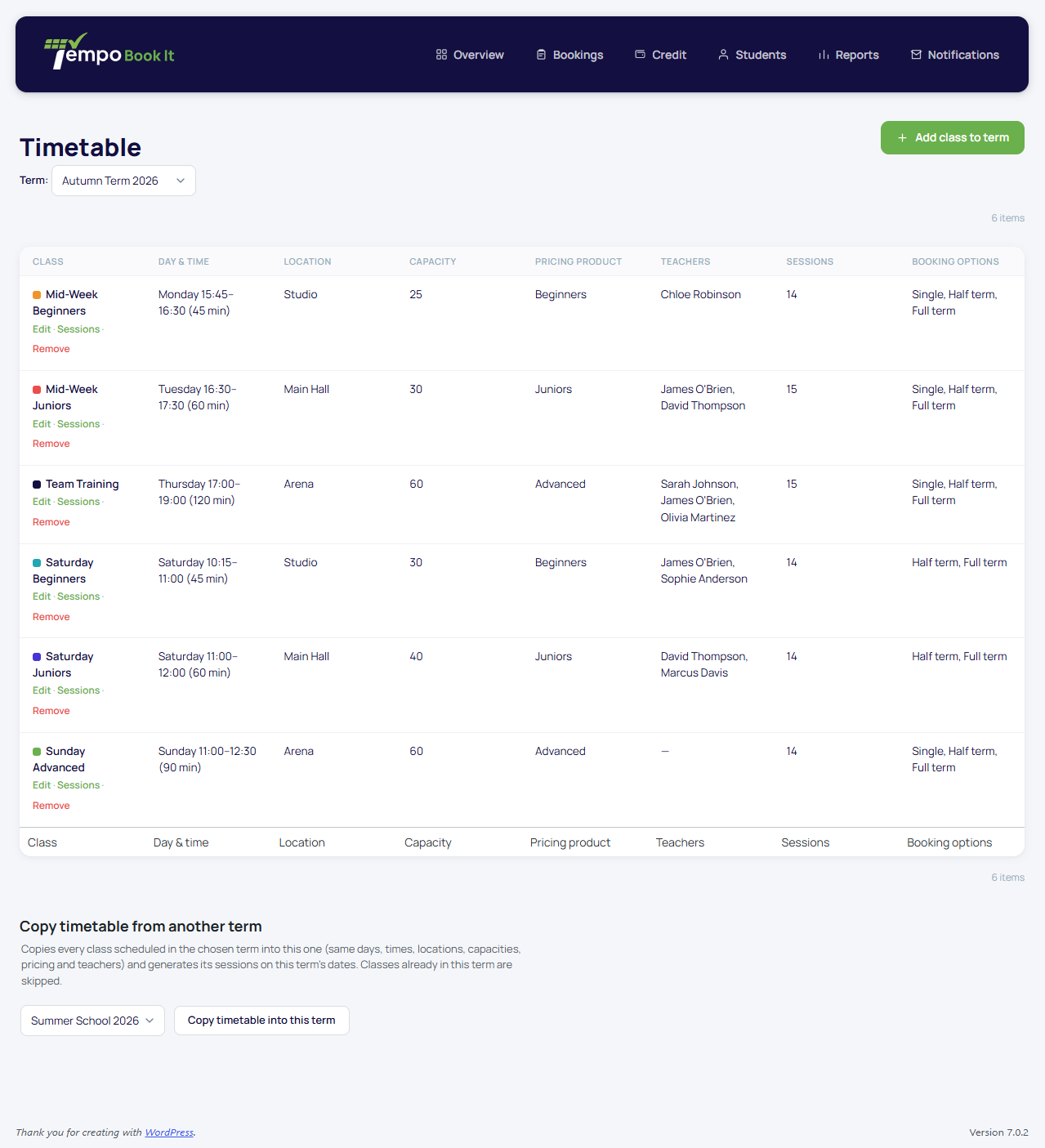
Add a term with its dates and half-term break, then add each class to the timetable: day, time, location, capacity, price and teachers. Tempo generates every dated session for the term on its own, and next term you can copy the whole timetable across in one click.
Prices come from a short list of pricing products you set up once, so a price change is one edit, not thirty.

Step 4
Open bookings
Tempo creates the booking page and the register page for you when it's activated; link to them from your menu and you're live. If you build your pages with Elementor or another page builder, drop [dsb_booking] into any shortcode widget and the whole booking flow appears right there, in your club's colours.
Payments go straight to your own Stripe or PayPal account through WooCommerce's normal checkout.
Step 5
Let it run the week
From here the week runs itself. Parents book and pay, your coaches mark the register on their phones, confirmation and reminder emails send themselves, and the bookings hub shows you who's booked, paid and turned up.
New logo or colours next season? That's step 2 again, whenever you like.


Adding Tempo
No code needed. Honestly.
-
Works with what you have
Any theme and any page builder, Elementor included. Nothing about your site has to change.
-
Everything is a setting
Every step on this page is a settings screen or a shortcode. If you can fill in a form, you can do this.
-
Rebrand whenever you like
Colours, logo and vocabulary change in minutes, and change again as the club grows.
-
Code only when you want it
The developer detail lives on For developers, for the day you or your designer want it.
Included with every licence
The Tempo Book It theme, free
The plugin works with the theme and page builder you already use, so there's nothing to change. Every purchase also includes our own theme at no extra cost. We built it around the plugin, so booking pages, timetables and account screens sit exactly where parents expect them.
Use it as your whole site, as a starting point, or not at all. Your licence is the same either way.
- Layouts matched to the booking flow
- Picks up your club colours and logo automatically
- Optional; swap it for any theme, any time
Build club sites?
Talk to us about multi-site and agency pricing; one conversation, straight answers, no per-booking cut for your clients ever.