

Browse docs
Manual bookings: phone, walk-in and pay-by-link
Book anyone into anything from the office, take payment separately, or send a 48-hour payment link.
Not every booking arrives through the website. A parent phones, a family turns up, a committee member gets a free place; Add booking (next to the title on Tempo → Bookings) covers all of it.
Your site may use different words. Tempo lets you rename class, student and teacher under Settings → Branding & vocabulary; these docs use the defaults.
Placing the booking
- Pick the student and the purchaser (usually the parent). Both must already exist; create new people on the members screen first, which is also where parent and child get linked.
- Pick the class. Classes closed to online booking are still bookable here; closing a class to the public never closes it to you.
- Pick a package or single date. The form shows live capacity, full and already-booked markers, and warns (but never blocks) on overlapping bookings; the office is allowed to make judgement calls the public site isn't.
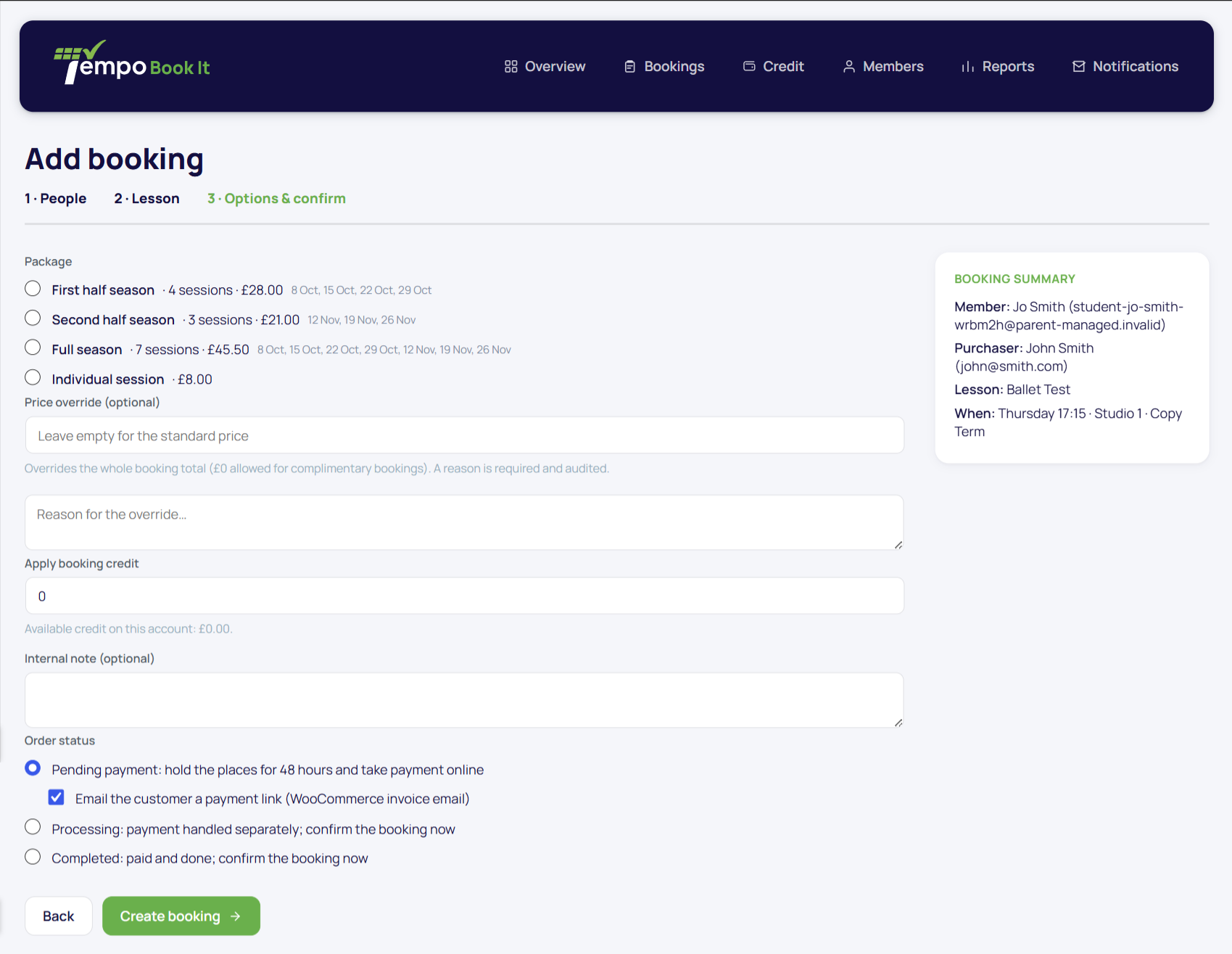
Then the optional extras:
- Price override: set the whole booking's total, £0 allowed for complimentary places. A reason is mandatory and goes in the audit log, so generosity stays accountable.
- Apply booking credit: validated against the purchaser's balance, settled once when the order is paid.
- Internal note on the order.
Choosing how payment happens
The order status you pick is the payment story:
- Processing or Completed: payment already handled (cash in the till, bank transfer). Bookings confirm immediately and the normal confirmation emails go out.
- Pending payment: creates real pending bookings that hold the places for 48 hours. They appear under the Bookings hub's Pending view, in the pending-payment reports, and as "Awaiting payment" on the family's My Account. Tick send payment link and WooCommerce's invoice email goes to the purchaser with a pay link (their billing details are filled from their account, so it actually delivers). Paying within the window confirms the bookings in place. If the deadline passes unpaid, the order is cancelled automatically: places released, link dead, family notified through the normal ended-bookings notice.
The pending list doubles as your who-owes-money list, and it cleans itself up. No spreadsheet of IOUs, no places quietly hogged by unpaid promises.
The rules the form enforces
Worth knowing so they don't surprise you: a price override without a reason is rejected; credit beyond the purchaser's balance is rejected; and re-saving an order's status never duplicates bookings or emails. Everything here is audited like any other booking.
Thanks. That helps us improve these guides.
Thanks for letting us know. Ask us on the Support page and we'll help directly.