

Browse docs
The teacher register on a phone
The day view, marking attendance, walk-ins, the headcount check and completing a register.
The register is a page on your website, not a wp-admin screen: a teacher opens it on their phone at the studio door, logged in with their teacher account, and marks the class in seconds. It works fully without JavaScript, and with it every tap saves instantly, so the office sees marks live.
Your site may use different words. Tempo lets you rename class, student and teacher under Settings → Branding & vocabulary; these docs use the defaults.
The day view
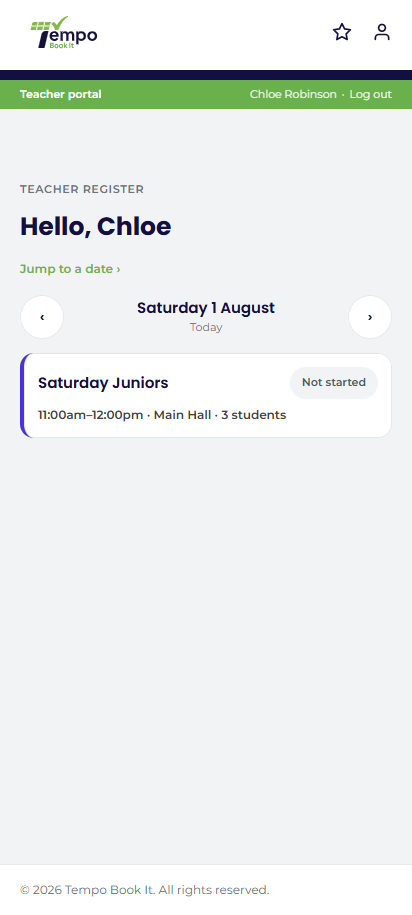
The register opens on today: one card per class with time, location, booked count, the class's colour, and a progress badge (Not started, In progress x of n, Completed, or Cancelled). Teachers with classes today see their own classes first, with a "Show all classes" link to widen the view.
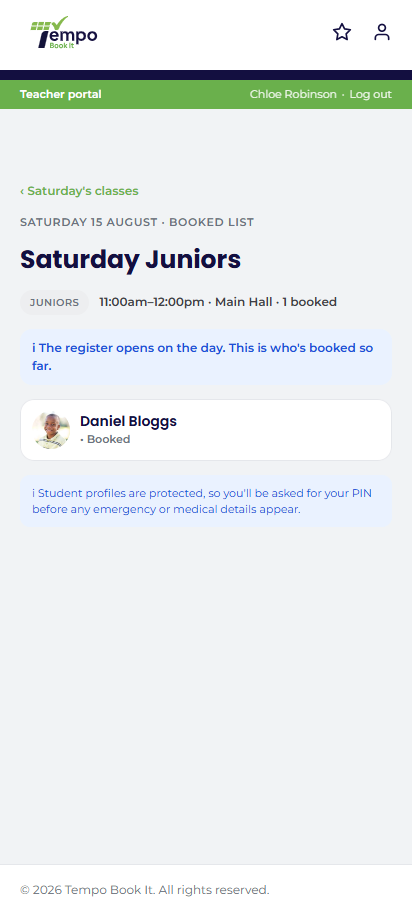
Arrows step a day at a time, and "Jump to a date" opens a date picker, so a teacher can look weeks ahead. Future days show a read-only booked-so-far list ("register opens on the day"). Past days lock at midnight: teachers see the day's true state but can't change it; office staff with the amend permission can still correct any past register.
Marking the register
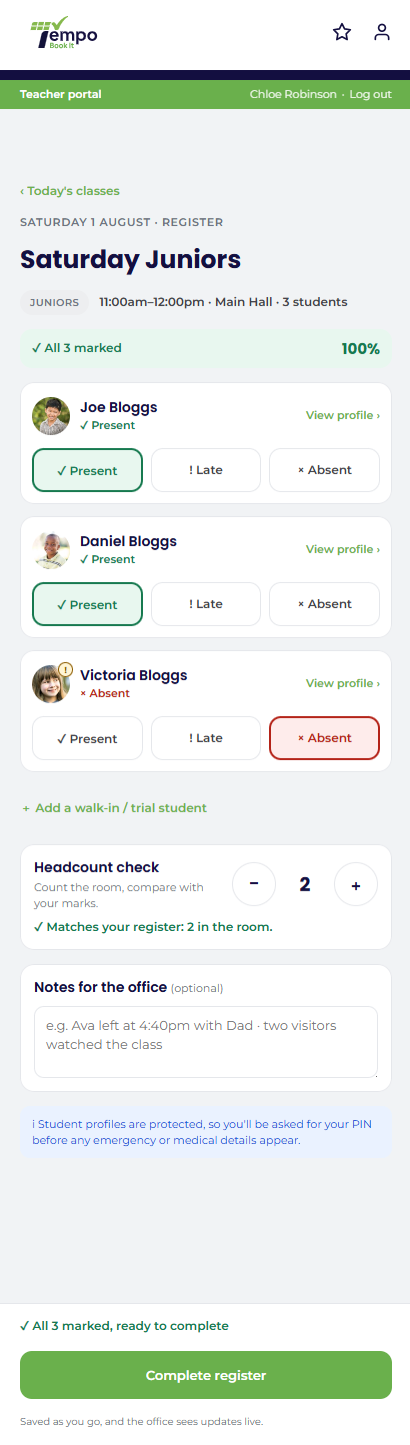
- Present / Late / Absent chips per student; unmarked shows as "Expected", and tapping a selected chip clears it back. Late counts as attended in reports.
- "Mark all present, then flag the exceptions" does the whole room in one tap; it never overwrites reported absences.
- Reported absences arrive pre-marked ("Absent · reported", flagged in blue), thanks to families using Report absence. The chips stay live in case the student turns up anyway.
- Walk-ins and trials are added by name, join every count, and are flagged to the office with the register.
- The headcount check stepper starts from the marked count and warns on a mismatch ("check for walk-ins or a wrong mark"). Optional, recommended, and the fastest way to catch the unmarked child at the back.
- Notes for the office is a free-text box for anything the office should know.
Completing the register
Complete register enables once every student and walk-in has a status; the banner shows progress and a three-step checklist (mark → headcount → complete). Completing:
- locks the marks (the teacher can reopen and amend until midnight; after that it's office-only);
- converts any untouched reported absences into real absent marks, credited to the completing teacher in the audit log, so reports and the register agree forever after;
- records the final headcount, walk-ins and note.
What parents see
Once marks exist, families see Present, Late or Absent against past dates in My Account. Honest by design: an unmarked past session counts as absent in attendance reporting, never silently as present. More in Attendance data and what the office sees.
Thanks. That helps us improve these guides.
Thanks for letting us know. Ask us on the Support page and we'll help directly.