

Browse docs
Branding & vocabulary: make Tempo speak your sport's language
Your name, your colours, your logo, and, the signature trick, your words on every screen and email.
Tempo → Settings → Branding & vocabulary is where the plugin stops looking like software and starts looking like your club. Half of it is the branding you'd expect; the other half is the feature nothing else has: the words themselves.
Vocabulary: the words are settings
The terms *class*, *student*, *teacher* and *term*, singular and plural, are all configurable. A football club sets *training session*, *player*, *coach* and *season*; a swim school sets *swim session*, *swimmer* and *instructor*. Every surface follows: the booking flow, every button, My Account, the teacher register, emails, and even your own admin screens, right down to the menu labels (Terms becomes Seasons for that football club).
This is why a parent booking with your club never sees a word that doesn't sound like your sport. It reads like software built for you, because linguistically it is.
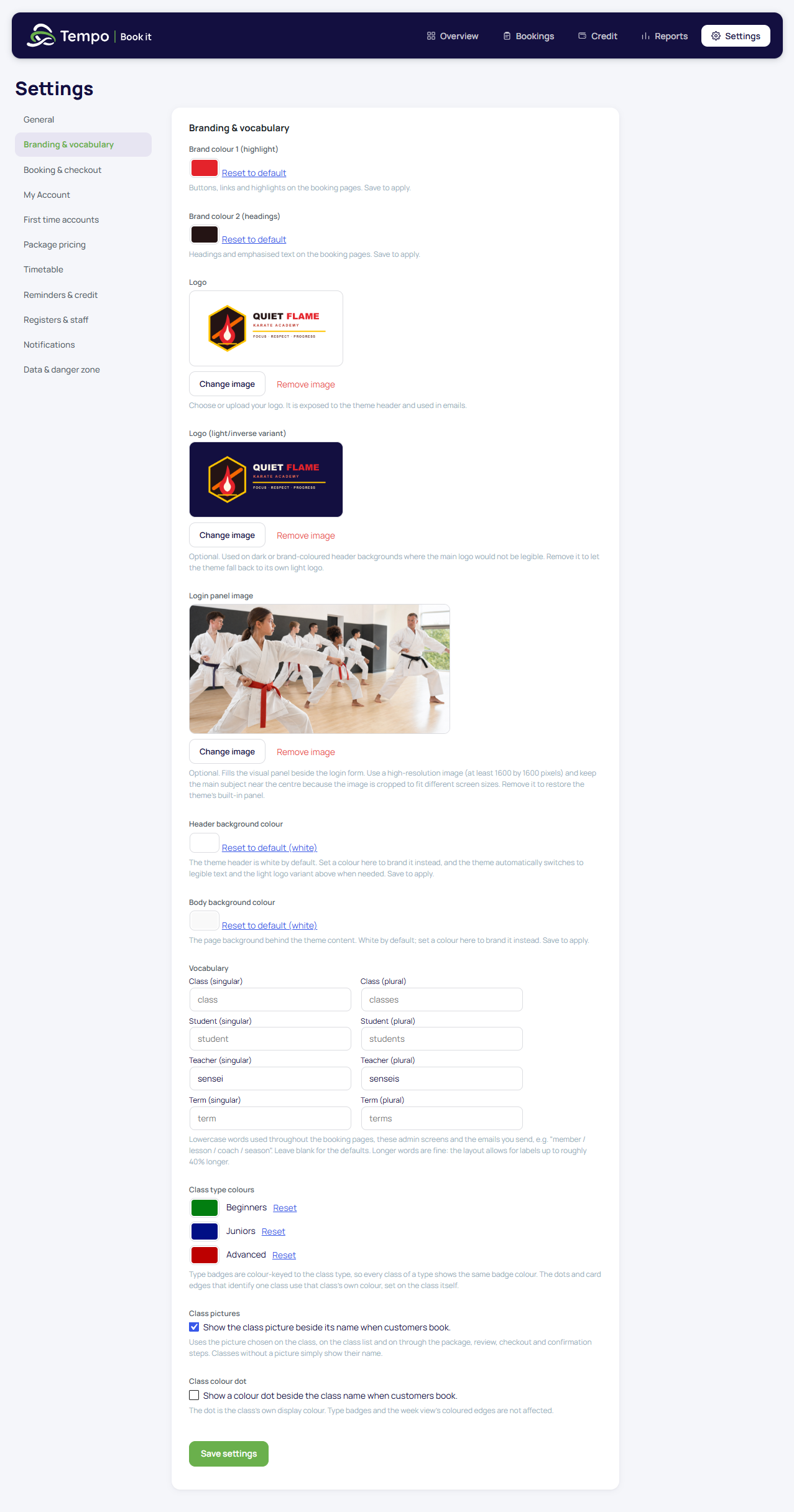
A few places deliberately keep fixed English, all sensible once said out loud: the labels on this settings screen itself (they name what you're configuring), CSV column headings (machine-stable), and a handful of sentence-openers where a lowercase custom word would break the sentence. Email templates use vocabulary tokens throughout, so your emails follow too.
Blank fields mean the defaults; the setup wizard prefilled these from your industry preset, and you can refine them here any time.
Business name and type
Your business name appears where the club is named (emails, the login area), and the business type ("Dance School", "Football Club") is used in the few places where naming the kind of business genuinely helps a sentence. Everywhere else, copy is written neutrally ("the office", "get in touch"), which reads better than a label jammed into every sentence.
Logo and colours
- Logo: from your media library; used by the matching theme's header and your emails.
- Brand colours (primary and secondary): applied across the booking flow, register and account screens. Tempo automatically computes readable text colours on top of your brand colours, so an enthusiastic yellow can't produce illegible buttons.
- Class type colours: per-type badge colours for the timetable and booking screens (class types are your own list).
- Class images and colour dots: two toggles controlling whether class photos and colour dots show through the booking journey; both on by default.
Some fields (header background, page background, login panel image) only activate when your theme declares support for them; the matching theme does, and any custom theme can. If one of those fields looks inactive, that's your theme not claiming it, not a fault.
The five-minute rebrand, in practice
Change the vocabulary, the colours and the logo here, and the entire member-facing product follows: no page edits, no template changes, no designer. If you're evaluating Tempo for a multi-club agency, this one screen is most of the pitch.
Thanks. That helps us improve these guides.
Thanks for letting us know. Ask us on the Support page and we'll help directly.