

Browse docs
Creating a term
Dates, the half-term break, and excluded dates like bank holidays and show weekends.
A term is the dated container your timetable lives in. Creating one takes a minute; the only part worth thinking about is the breaks.
Your site may use different words. Tempo lets you rename class, student and teacher under Settings → Branding & vocabulary; these docs use the defaults.
Create the term
- Go to Tempo → Terms → Add term.
- Give it a name members will recognise ("Autumn Term 2026"), a start date and an end date. Internal notes are for your office only.
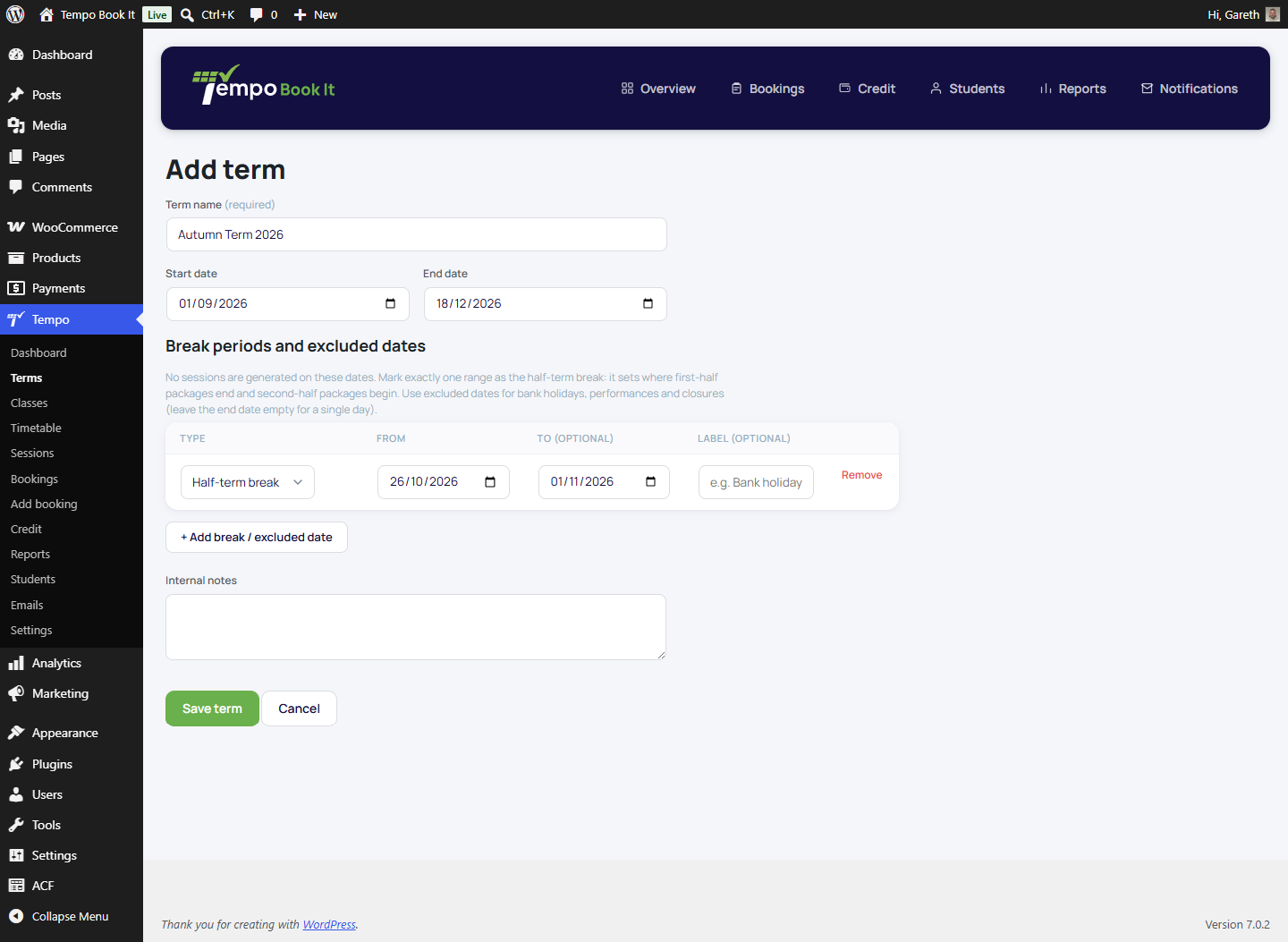
Break periods and excluded dates
No sessions are generated on these dates, so members can never book them and teachers never see them on the register.
- Half-term break: mark exactly one range as the half-term break. It does two jobs: no sessions during it, and it defines where first-half packages end and second-half packages begin, which is what makes half-term pricing possible. A term saves fine without one, but half-term booking packages won't be offered for it (the save notice reminds you).
- Excluded dates: add a range for anything else the club is closed: bank holidays, performance weekends, venue closures. Leave the end date empty for a single day. Add as many as you need.
Put show weekends and known closures in now, before members book. Excluding a date later is still safe (see below), but any already-booked sessions on it will need resolving by hand.
Editing a term later is safe
Saving a term regenerates every class's sessions in that term, and the regeneration is careful:
- New matching dates are added; dates now inside a break or exclusion are removed, but never if they have bookings. Booked sessions that no longer fit are kept, counted in the save notice, and flagged on the Sessions screen for you to resolve (transfer the students, cancel with credit, or restore the date). Nobody's booking silently disappears.
- Sessions you've individually moved, cancelled or edited keep their changes.
So don't fear the edit: extend the term, shift the break, add an exclusion. Tempo tells you about anything that needs a human decision. Full details in Editing individual sessions, and if a save notice mentioned affected sessions, Sessions look wrong after an edit walks through resolving them.
Finished terms tidy themselves away
The Terms list opens on Current & upcoming, soonest first, so the term you're working in is always at the top. The Show past terms chip flips to finished terms, newest first. A term counts as archived the moment its end date passes; it's worked out from the dates, never stored, so nothing changes in the database and nothing is ever deleted. Archived terms stay fully editable and duplicatable, which matters, because next term usually starts life as a copy of a finished one.
Next
With the term in place, create your classes if they don't already exist, then put them on the timetable. Setting up next term from this one is a one-click job: see Duplicating classes and terms.
Thanks. That helps us improve these guides.
Thanks for letting us know. Ask us on the Support page and we'll help directly.