

Browse docs
Building the timetable and generating sessions
Put classes into the term with day, time, place, capacity and price; sessions generate themselves.
The timetable is where a term comes to life: each entry schedules one class in the current term, and saving it generates every bookable session automatically.
Your site may use different words. Tempo lets you rename class, student and teacher under Settings → Branding & vocabulary; these docs use the defaults.
Add a timetable entry
- Go to Tempo → Timetable and pick the term at the top; the screen always shows one term at a time. The picker groups Current & upcoming terms and Past term dates, and opens on the current term; picking a finished term shows its timetable unchanged, with an Archived badge beside the picker.
- Add the class to the timetable and fill in the entry:
- Day of week and start time. - Duration: chosen from your own duration list (set under Tempo → Settings → Timetable → Class durations; anything from 30 minutes to a full day). - Location: from your defined list of studios, pitches, pools or halls. - Capacity: how many places exist. Tempo enforces this on the server at booking time; the last place can never be sold twice. - Duration product: where this class gets its base pricing from; see How pricing works. - Price overrides: optional per-class rates that override the product's; see Price overrides and package modes. - Allowed booking options: which of single sessions, half-term and full-term packages members may book. - Cancellation deadline override: give one class a different cancellation cut-off from the site default, if needed. - Online booking open: whether members can book it themselves. Closed classes are still fully bookable by staff. - Teachers: who takes it; drives the register.
- Click Save & generate sessions.
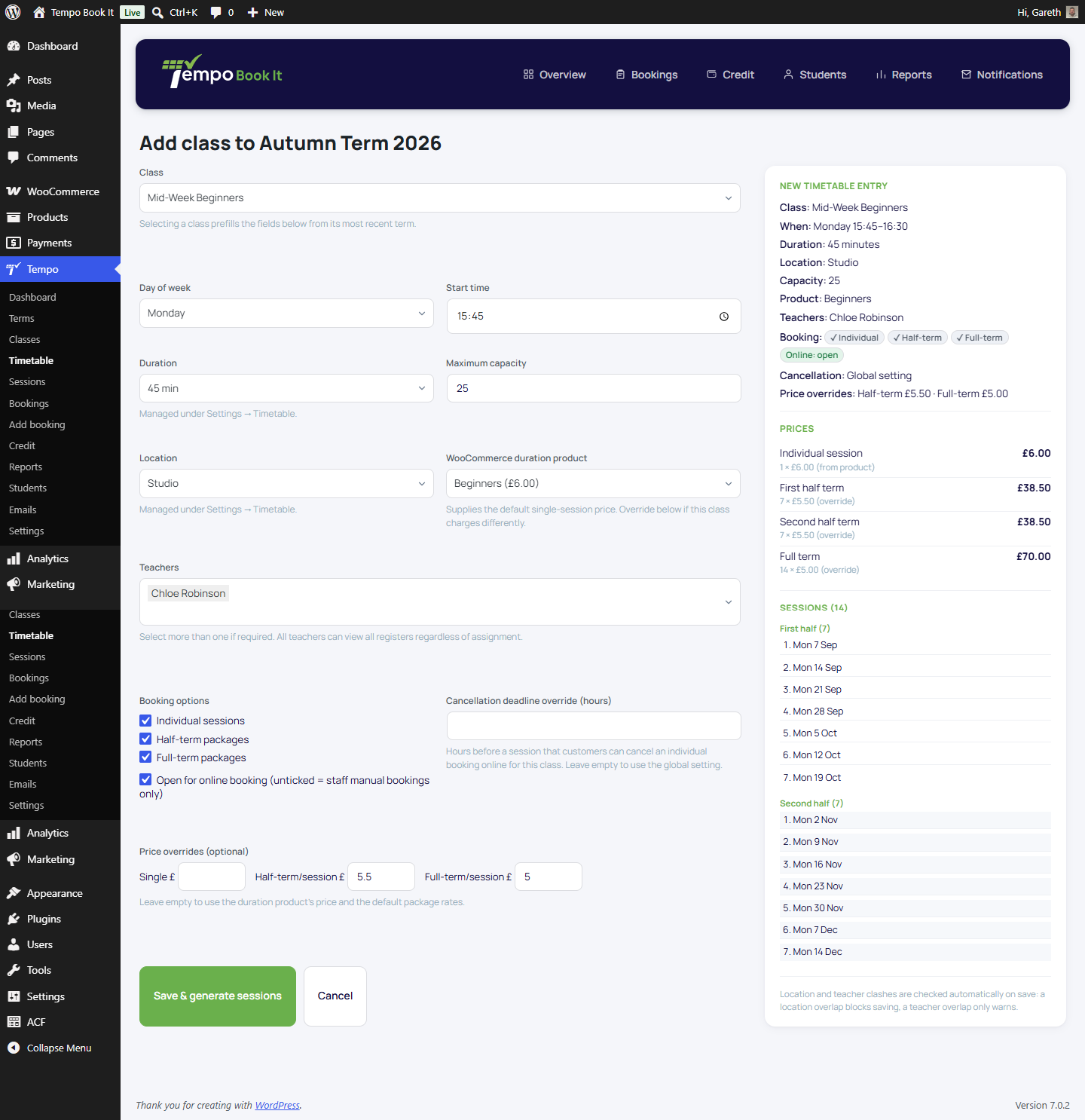
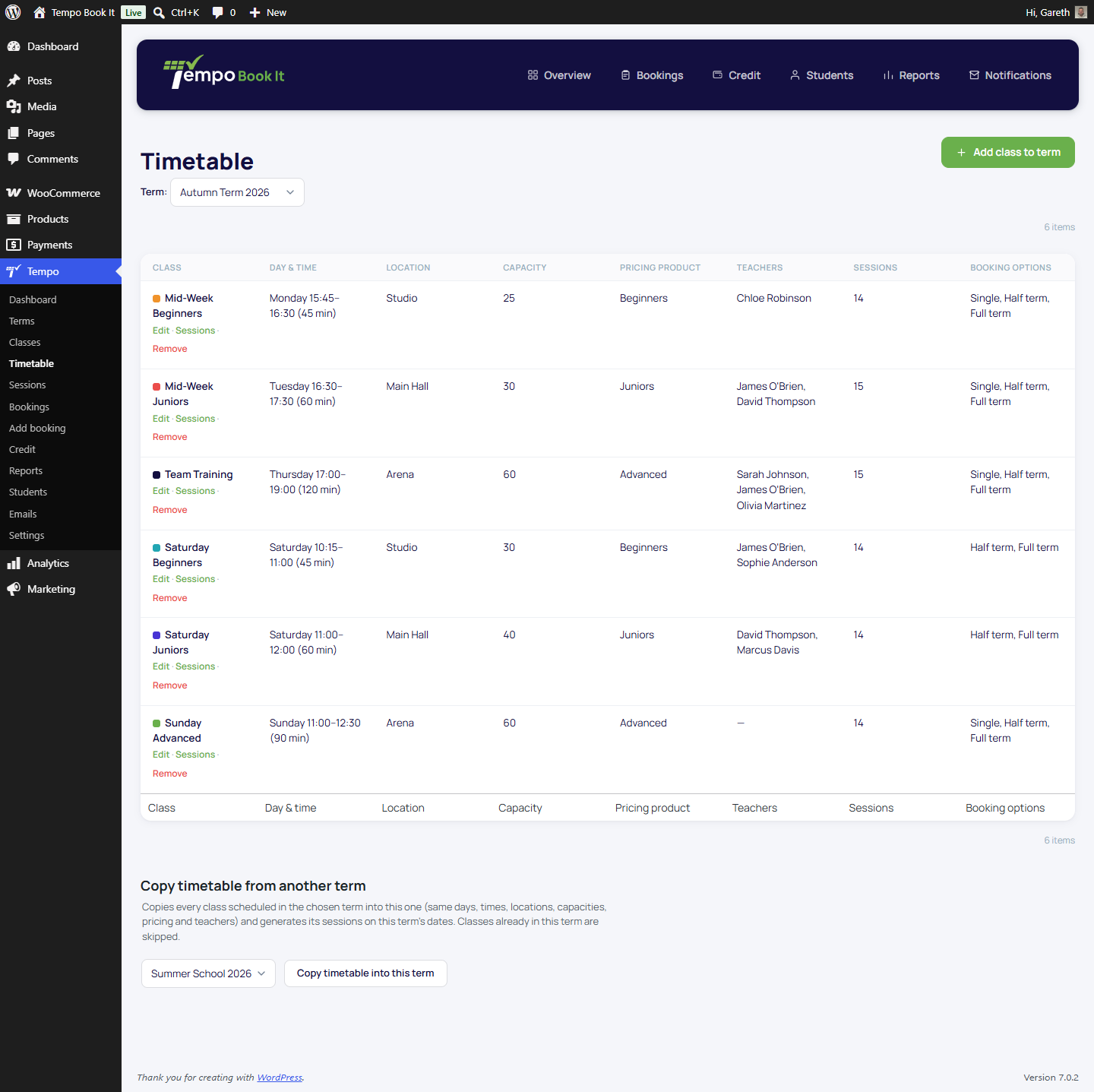
Adding a class that ran in a previous term? The form prefills from its most recent schedule anywhere, so a returning class is mostly a check-and-save.
Clash protection
- Location clashes are blocked. Two classes can't occupy the same place at the same time; the save refuses and says why.
- Teacher clashes warn. Assigning a teacher who's already scheduled elsewhere at that time gets a warning but not a block, because real clubs share staff in ways software shouldn't veto.
What "generate sessions" actually does
Saving creates one session for every matching weekday between the term's dates, skipping the half-term break and excluded dates. Those sessions are what members book, teachers see on the register, and reports count.
Re-running generation is always safe, and happens automatically whenever you save the term or the entry:
- Existing sessions on matching dates are kept (times update if you changed the schedule).
- Sessions you've individually moved, cancelled or edited are never touched.
- Unbooked sessions that no longer match are removed; sessions with bookings are never deleted. They're counted in the save notice and flagged on the Sessions screen for you to resolve, with the notify panel handling what members are told. See Sessions look wrong after an edit.
- Extra sessions are never touched either. Their dates are explicit rather than a weekly pattern, so no term or timetable save can move or delete them.
After the timetable
Single dates that need attention (a cancelled evening, a moved class, a capacity tweak for one day) are handled per-session: see Editing individual sessions. A date that was never part of the weekly pattern (a workshop, an extra rehearsal) is a job for extra sessions rather than the timetable. And when next term comes around, don't rebuild any of this; duplicate the term with its timetable.
Thanks. That helps us improve these guides.
Thanks for letting us know. Ask us on the Support page and we'll help directly.