

Browse docs
Creating a class
The permanent record of each class: identity, description, image and colour. No dates, no prices.
A class is a permanent identity record: create "Saturday Juniors" once and it serves every term from now on. Dates, times and prices deliberately don't live here; they belong to the timetable entry, so the class never needs re-creating.
Your site may use different words. Tempo lets you rename class, student and teacher under Settings → Branding & vocabulary; these docs use the defaults.
Create the class
- Go to Tempo → Classes → Add class.
- Fill in what applies; only the name is essential thinking:
- Name: what members see everywhere ("Saturday Juniors").
- Type: from your own list of class types, defined under Tempo → Settings → Timetable (for example Ballet, Street, Tap for a dance school; you choose the list and each type's badge colour).
- Age range, school year, grade, ability: optional structure that helps parents pick the right class.
- Display colour and image: the class's own colour dot and photo, shown through the booking journey.
- Description and student-facing info: what members read when choosing.
- Admin notes: internal only.
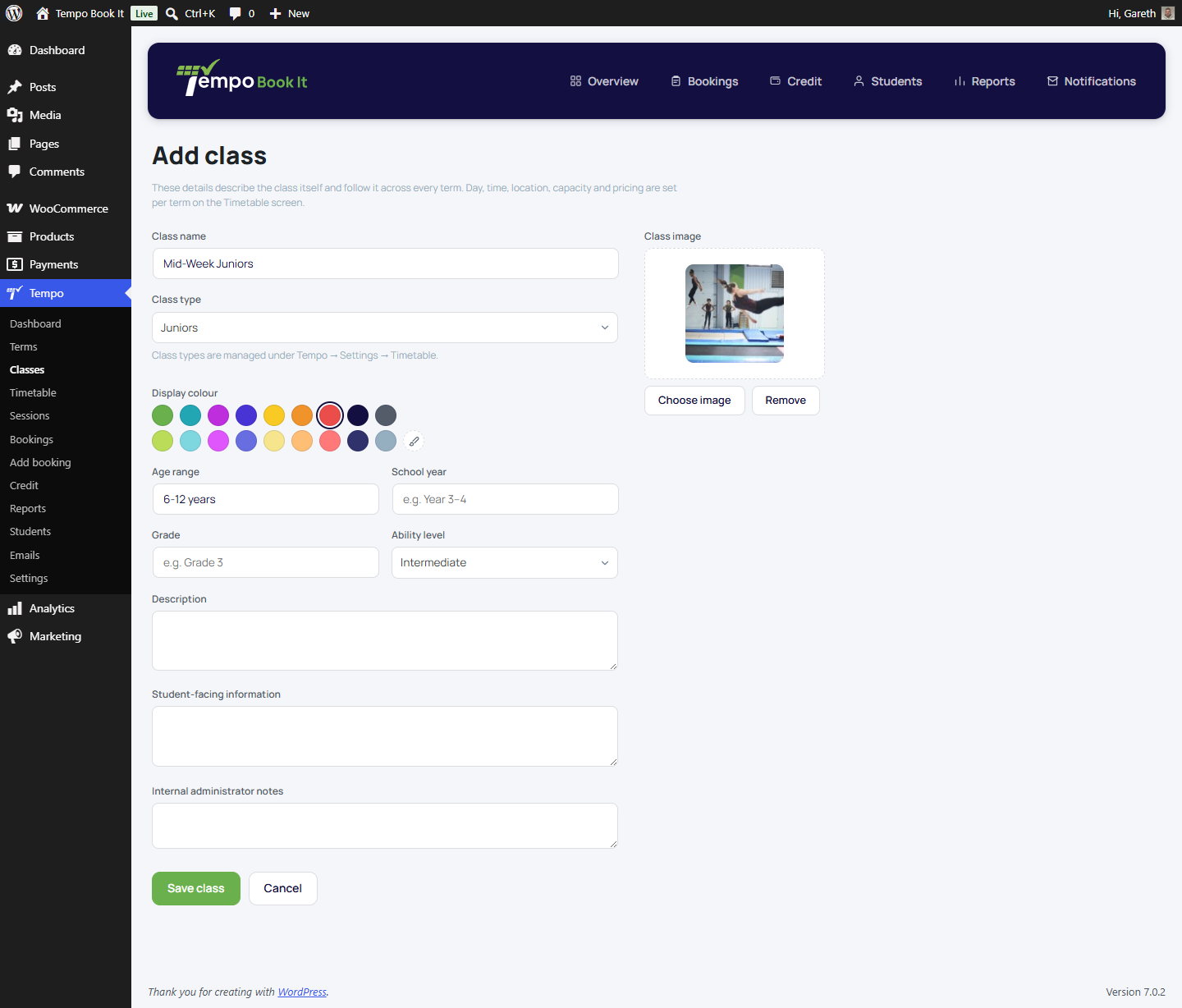
Where the image and colour appear
Everywhere the class is named on the member journey (class cards, package and review steps, the checkout panel, the order-received page) it leads with its image thumbnail, when one is set, and a colour dot in the class's display colour. It's a small thing that makes a booking list instantly scannable for a parent with three children in three classes.
If that's not your site's style, both the pictures and the dots can be switched off site-wide under Tempo → Settings → Branding & vocabulary.
Deleting a class
Delete is a row action on the Classes list, and it's guarded so history is never harmed:
- A class still on any term's timetable, past or present, can't be deleted; the notice names the terms. Remove it from each on the Timetable screen first, which is also where any booked sessions get dealt with (bookings are kept, never deleted, and upcoming ones are flagged for resolution on the Sessions screen).
- Deletion hides the class from lists, dropdowns and the booking journey, but the record itself is kept, so old bookings, registers and reports still show its name correctly. Like everything else, the deletion is written to the audit log.
Running the same class again next term? Don't create it twice; the class already exists, it just needs a new timetable entry. Use duplicate (a row action that opens a prefilled Add form) only for genuinely new variants, like adding "Saturday Juniors B" alongside the original.
Thanks. That helps us improve these guides.
Thanks for letting us know. Ask us on the Support page and we'll help directly.