

Browse docs
Editing individual sessions
Move, cancel or adjust a single date without touching the rest of the term.
The timetable describes the normal week; the Sessions screen handles the exceptions. When one date needs to change (the hall is closed, the teacher is ill, a show clashes) you edit that session alone, and the rest of the term carries on untouched.
Your site may use different words. Tempo lets you rename class, student and teacher under Settings → Branding & vocabulary; these docs use the defaults.
Finding the date
The list opens on Current & upcoming: sessions that haven't finished yet, soonest first, which is almost always the date you're after. The Show past sessions chip flips to finished sessions, most recent first, each tagged with an Archived badge (worked out from the session's end time, never stored, so nothing about the session changes). Setting an explicit From/To date range searches all dates regardless of the chip.
If you think in grids rather than lists, the calendar shows the same sessions on a month, week or day view, and links straight back to each session's edit form.
What you can do to a single session
Go to Tempo → Sessions and find the date. Each session supports:
- Move it: change that date's day, time or location only.
- Cancel it: cancel the one date. Cancelling routes through the notify panel, where you decide each booked student's outcome (credit, move, leave pending) and preview the email before anything is sent; nothing goes out automatically. The full flow is covered in Cancelling a session as the club.
- Restore it: bring back a session you cancelled.
- Override capacity or teachers for that date only: a bigger studio for one week, a cover teacher, and the timetable entry stays as it was.
- Block spaces: hold back some places from online booking for that date (for trials, walk-ins, or just breathing room).
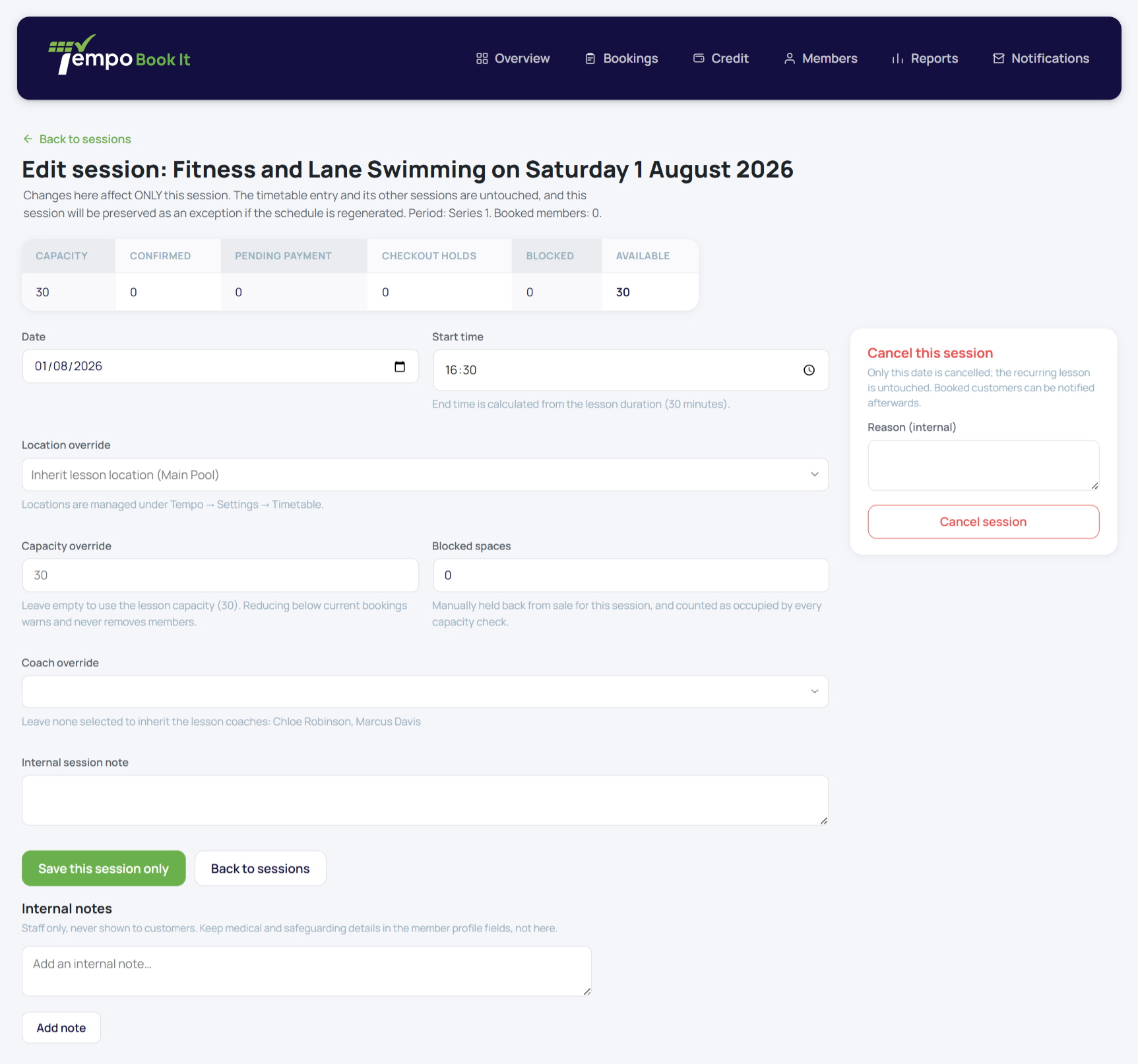
The safety rails
Two behaviours worth knowing, both deliberate:
- Reducing capacity below existing bookings removes nobody. The session is marked over capacity and warns you; it's your call who moves, via transfer or cancellation. Software should never pick which child loses a place. See A session shows over capacity.
- Edited sessions keep their changes. Whatever regeneration happens later (say, the term's dates are edited), a session you've moved, cancelled or overridden is never overwritten; it still claims its original date's slot.
When it's more than one date
If the whole schedule is changing (new day, new time, new venue for the rest of term), edit the timetable entry instead, and Tempo will regenerate the term while protecting anything booked or hand-edited. One-off changes: Sessions screen. Pattern changes: Timetable screen. That's the whole rule.
And when the date you need never belonged to the weekly pattern at all, don't edit anything: create it as an extra session.
Thanks. That helps us improve these guides.
Thanks for letting us know. Ask us on the Support page and we'll help directly.