

Browse docs
Linking parents and children: requests and matching
How family links are made, why parents can't link children themselves, and working the Requests queue.
The link between a parent account and a child's record is the keystone of the whole family model: it decides who may book, view and manage whom, and it's re-checked on the server on every action. Because it's that important, links are staff-made, always.
Your site may use different words. Tempo lets you rename class, student and teacher under Settings → Branding & vocabulary; these docs use the defaults.
Why parents can't link children themselves
A parent can *ask* for a child, but never search for, claim or attach an existing record. The reason is worth internalising: your old system's records live under nicknames, spellings and changed surnames. If a parent could self-attach "Amelia Smith" they might grab the wrong one, and a wrong link either splits a child's history in two or, worse, shows one family another family's child. So parents request; the office, which can see the records, decides.
(The one exception is public registration, where a brand-new parent and their brand-new child are created together; no existing records are involved.)
Where requests come from
Two places, both landing in the same queue: the first-login wizard, where a converting parent names their children, and My Account → Students → Add a student, for a parent adding another child later. One open request per family; extra names join it rather than starting a second. The parent sees pending names as "Waiting for the office".
Working the Requests tab
Tempo → Students → Requests shows each open request: the parent, their email, when they asked, and a checklist of names, each with the date of birth or note the parent supplied (that's your tie-breaker between two similar names). For each name:
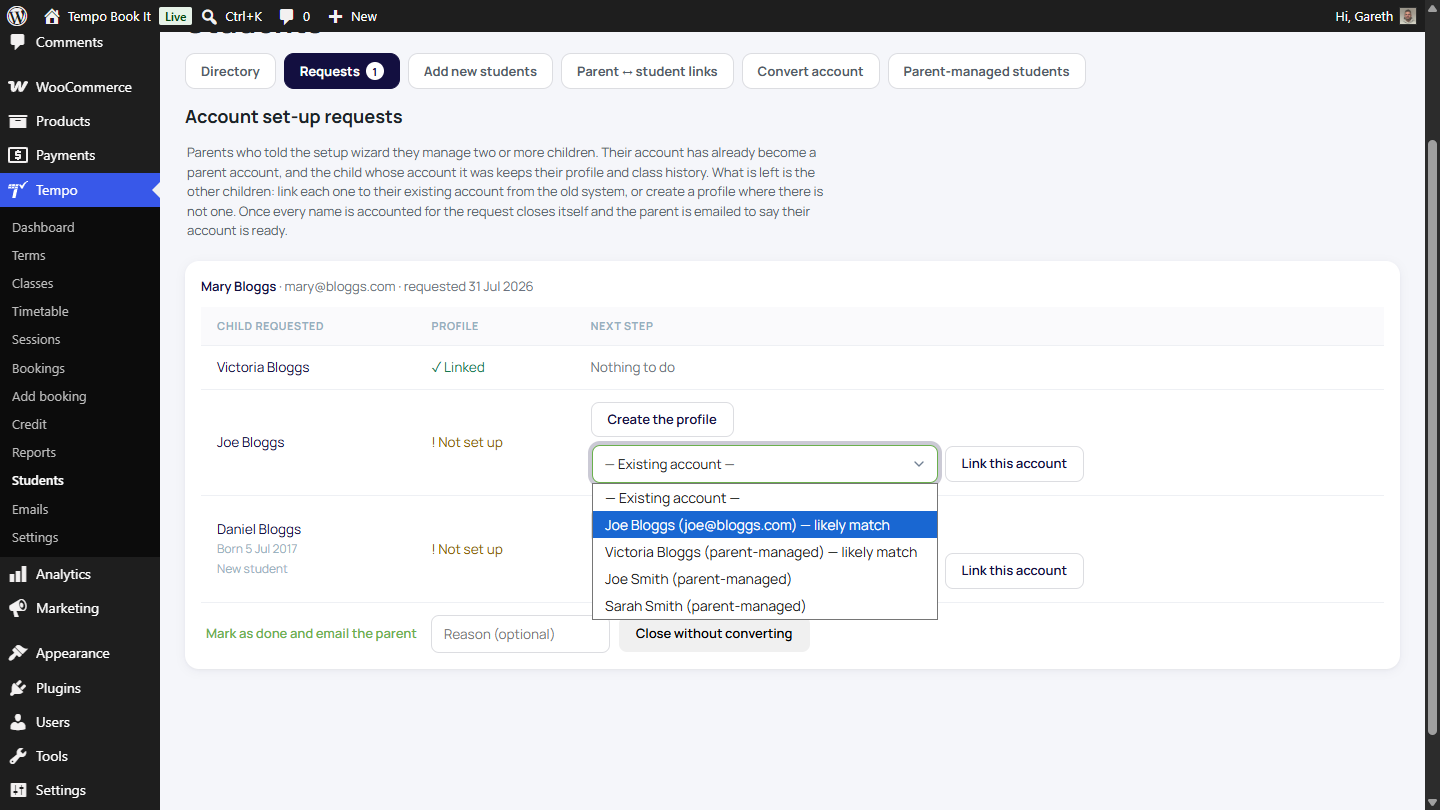
- Link this account: pick the child's existing record from the dropdown. Likely matches are sorted to the top and labelled, but every student account is listed, precisely because old records hide under other names. This is usually the right move; it keeps the child's history in one piece.
- Create the profile: for a genuinely new child, this takes you to Add new students with a parent-managed student pre-linked to the parent; you check the spelling and press create.
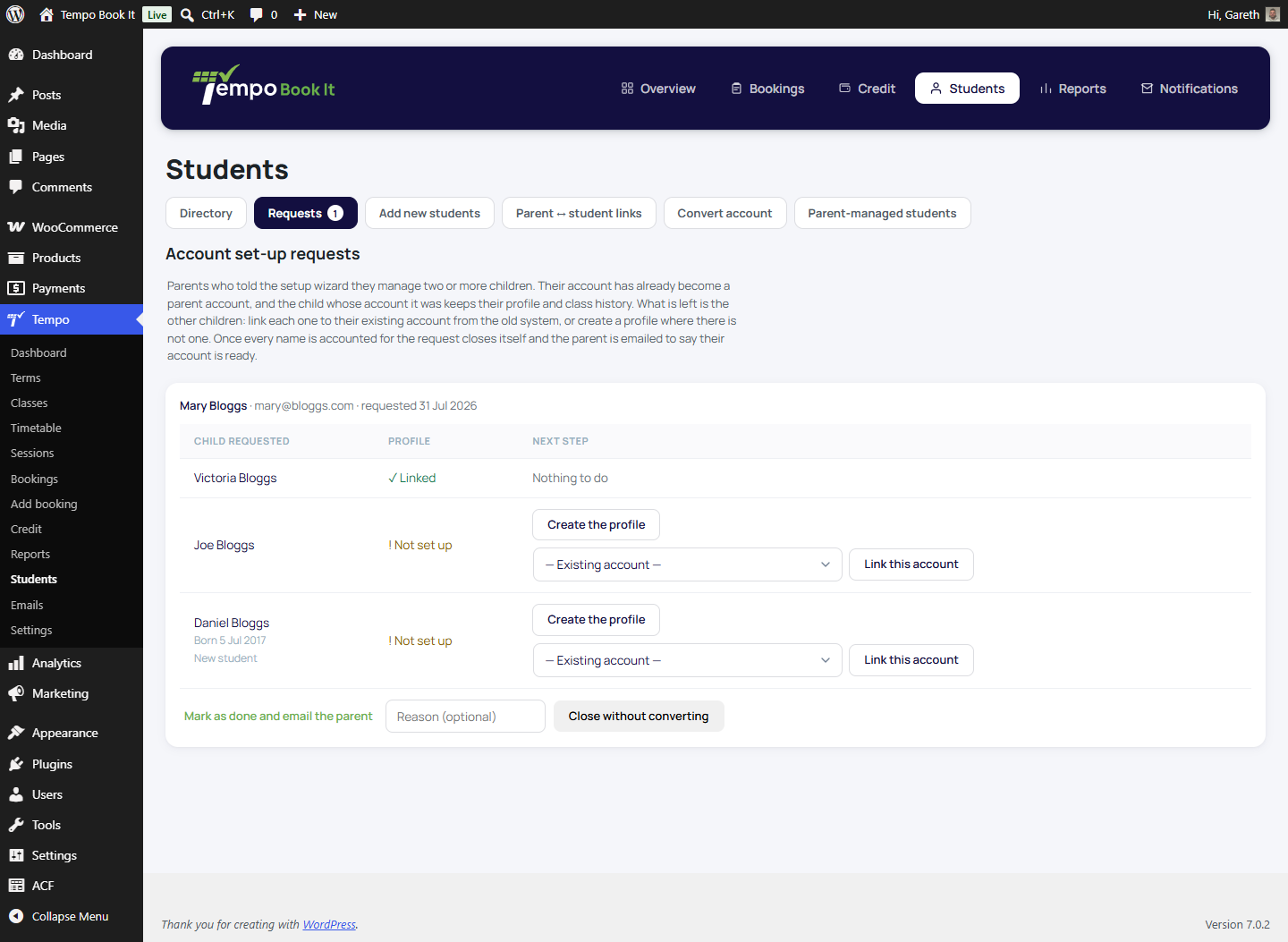
When every name is dealt with, the request closes itself and the parent is emailed that their account is ready. Their photo-permission answer is copied onto each child profile at completion (they signed before those profiles existed). Two escape hatches cover untidy cases: Mark as done and email the parent, and Close without converting for duplicates or mistakes (no email).
Managing links directly
The Parent ↔ student links tab is the direct tool: see and change which parents are linked to which children, for the cases that don't arrive as requests (blended families, guardianship changes, a grandparent who pays). Every change takes effect immediately across booking, My Account and the registers, and everything is audited.
The same tab holds the staff side of the "Also attends classes" switch: turn it on for a parent who takes classes themselves and Myself appears on their booking chooser and account screens, exactly as if they'd ticked it on their own Students tab. The model behind it is in How accounts work.
Thanks. That helps us improve these guides.
Thanks for letting us know. Ask us on the Support page and we'll help directly.