

Browse docs
The student directory and profiles
The office's view of every member: search, profile completeness, safe editing and audited access.
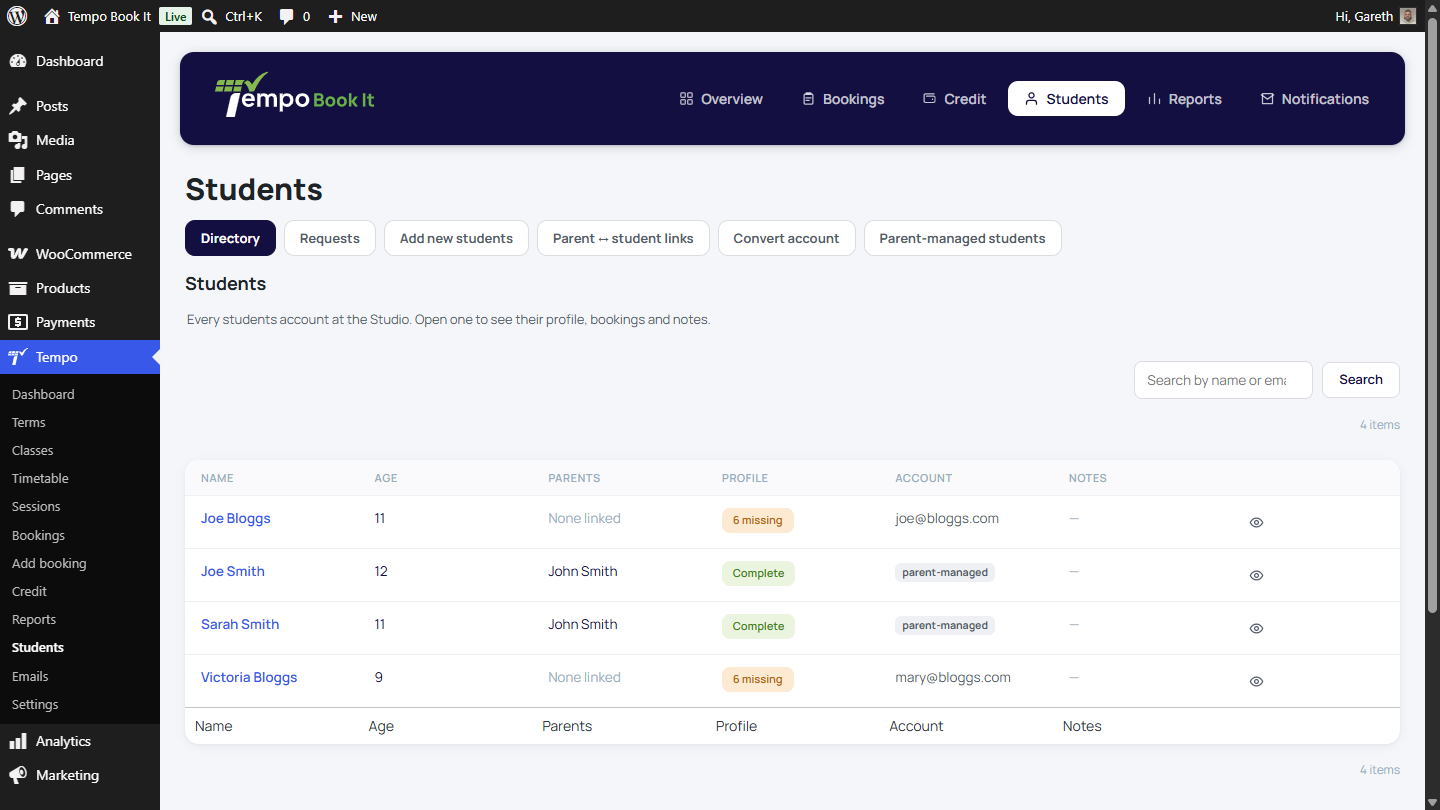
The Directory tab on the members screen (Tempo → Students; the label follows your vocabulary) is the office's answer to "who is this child and what do we know?". It's built so you never need the raw WordPress Users screen for member work.
Your site may use different words. Tempo lets you rename class, student and teacher under Settings → Branding & vocabulary; these docs use the defaults.
The directory list
Every student account, 20 per page: name (with the student's profile photo, or their initials where there isn't one), age, linked parents, profile status, photo permission, account type and note count.
Photo permission shows the answer currently on file at a glance: Given, followed by where photos may be used ("All uses", or say "Website, Social only"); Not given where the family declined; a dash where they haven't answered yet. A key under the table spells the short names (Print, Website, Social, Press) out against the full wording the family ticked, so nobody has to remember what "Social" covered.
Two search boxes sit above the table. The first matches students by name or email; the second matches parents by name or email and lists the students linked to them, which is how you find a family when the person on the phone isn't the one on the register. Used together they narrow rather than widen.
More filters adds two more ways to cut the list:
- Age from / Age to: either bound can be left blank for an open-ended range. Age comes from the date of birth on file, so a student without a usable one has no age and won't appear under any range; the Profile filter is where you find them.
- Profile: Complete or Incomplete, matching the pill in the Profile column exactly.
The Profile column is the quiet hero. It uses the exact same completeness rule as the online booking gate, so a student showing "2 missing" is precisely one who can't book online; hover to see which fields. When a parent rings saying booking won't work, this column answers it in five seconds; see A parent says they can't book.
Printing, downloading and emailing a profile
Trips, shows and chaperone folders all want the same thing: the child's details on paper. Each directory row (and the profile page itself) carries print and email actions:
- Print or download opens the profile as a single, self-contained A4 page in a new tab, with a Print / Save as PDF button (your browser's print dialog does the PDF) and a Download HTML link. The page carries the profile fields, the protected cards where you're allowed to see them, and the photo permission written out as the declaration the family signed, with the ticked uses, the signature (drawn or typed) and the date. The photo and signature are embedded in the file, so a saved copy stands alone.
- Email sends that same page to the address under Settings → Notifications → Send profiles to, as the message body and as an attached file. The action refuses, with a link to the setting, until that address is set, and asks for confirmation first, because it sends personal data in one click.
Both actions are written to the student's audit history, and emailed profiles show in the email log like every other send. Treat the output with the care the contents deserve: a printed profile is safeguarding data on paper.
A student's profile page
Opening a student shows everything in one place: identity, age, account type, linked parents, their credit (labelled with whose balance it really is; for a parent-managed child, credit belongs to the paying parent), profile completeness spelled out, every profile field grouped as the family sees them, their next ten bookings with a link to the filtered Bookings screen, their audit history, and internal notes.
Protected details, protected properly
Parent/guardian, emergency contact and medical details are the sensitive core, and they're treated accordingly:
- They're encrypted in the database, and only staff with protected-profile access can view them; other staff see a short note instead, and the values are never even read.
- Every view by staff is written to the audit log with the staff member's name, the same as when a teacher views a profile at the register.
- Edits go through the same gate. When a profile is saved, the audit records *which fields changed but never their values*, so sensitive data can't leak into the log itself.
Editing a profile
Edit profile opens the editor right over the directory page. Values save through the same machinery the family's own profile page uses, so sensitive fields are encrypted on the way in, completeness updates immediately, and what the family sees always matches what you saved. The photo comes from the media library. Everything works with JavaScript off, too.
Completeness: what "complete" means
A profile is complete once it holds a date of birth, gender, and an emergency contact name and telephone; for anyone under 18, also the parent/guardian name, relationship and mobile. Starred fields on the form are exactly this list. Incomplete profiles can't book online (staff are never blocked); the rule can be relaxed under Tempo → Settings → Booking & checkout if your club prefers.
Thanks. That helps us improve these guides.
Thanks for letting us know. Ask us on the Support page and we'll help directly.