

Browse docs
Installing the plugin
Upload, activate, and let Tempo set itself up. Takes about five minutes.
This article assumes your site already meets the requirements, with WooCommerce and ACF installed and active.
Before you start
Install WooCommerce and ACF first. Both are free and installed the usual way: Plugins → Add New, search by name, Install, Activate. Tempo checks for them at activation and will tell you if either is missing.
Install Tempo Book It
- Download your Tempo Book It zip file (you receive the download link when you start your trial or purchase).
- In your WordPress admin, go to Plugins → Add New → Upload Plugin.
- Choose the zip file and click Install Now.
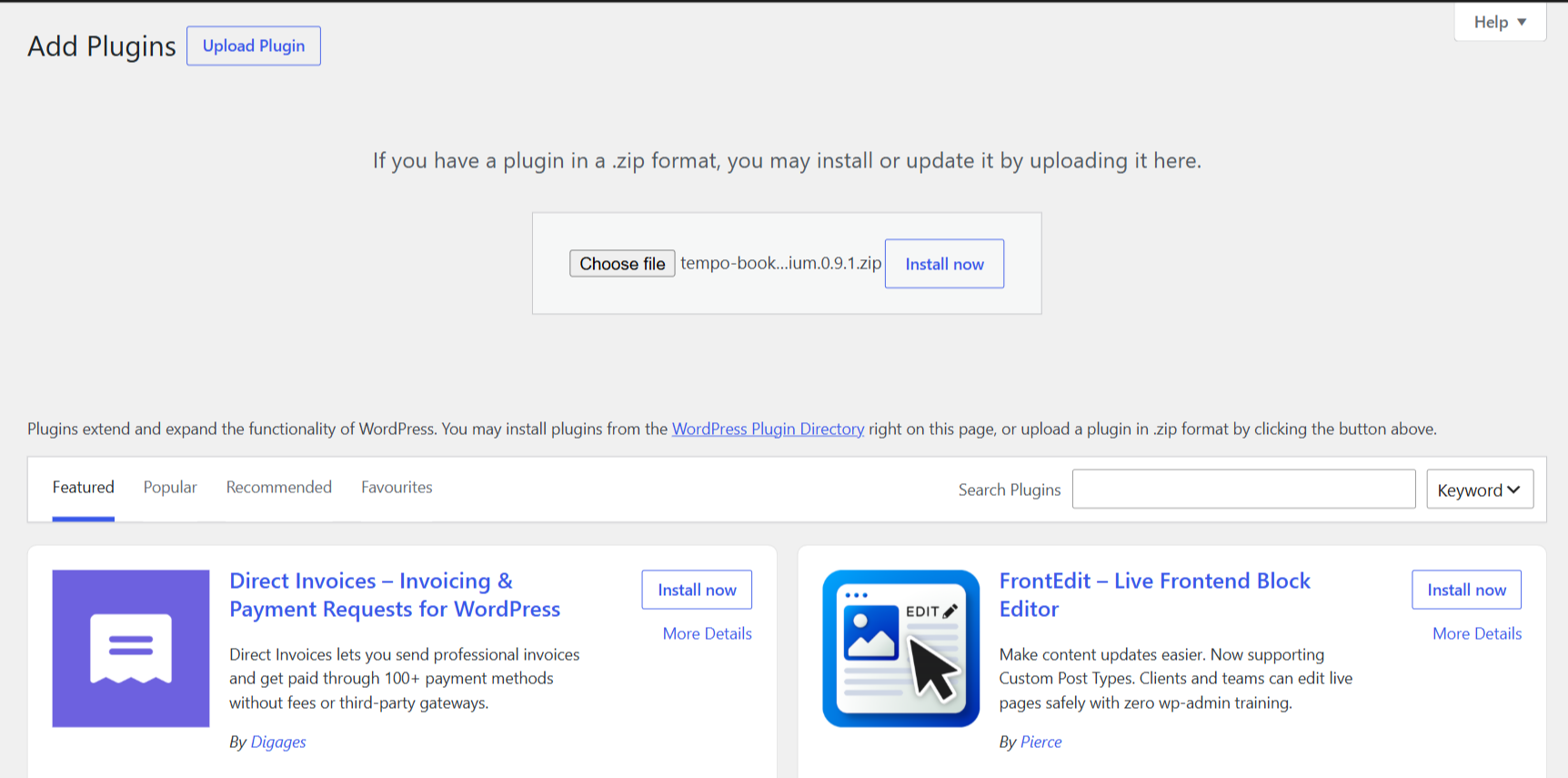
- When the install finishes, click Activate Plugin.
On a brand-new install, activation takes you straight into the setup wizard, a short full-screen form that asks what kind of club you run. It takes two minutes and everything it sets can be changed later; see The first-time setup wizard.
What activation sets up for you
You don't need to do anything here; this is just so nothing feels mysterious. Activating the plugin:
- Creates Tempo's own database tables, where bookings, attendance, credit and the audit trail live. Later plugin updates upgrade these automatically; updating is always enough, there is never a reinstall step.
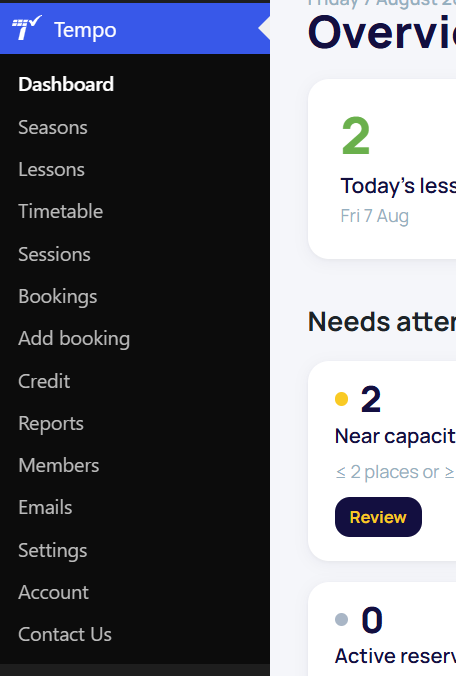
- Adds a Tempo menu to your admin sidebar; everything you administer lives under it.
- Creates the member-facing Book classes page for you (you can move or restyle it later; see Creating your booking and register pages).
- Sets up the parent and teacher account roles, so family logins and register access work.
- Fills in sensible default settings: a 30-minute reservation hold at checkout, a 2-hour cancellation deadline, 24-hour class reminders and 12-month credit expiry. All adjustable under Tempo → Settings.
- Schedules the background jobs that send reminders and tidy up expired reservation holds.
If the Bookings or Credit tabs in a member's account area ever show a "page not found" error after installing or moving the site, go to Settings → Permalinks and click Save Changes once. That refreshes WordPress's URL rules and fixes it.
Deactivating and uninstalling: what is safe
Worth knowing from day one, because it is designed to be unscary:
- Deactivating the plugin pauses its background jobs and nothing else. Every booking, attendance record, credit balance and audit entry stays in the database, and everything returns when you reactivate.
- Deleting the plugin also keeps all data, unless a website administrator had first ticked "Remove data on uninstall" in Tempo → Settings (it is off by default and deliberately tucked away).
The one intentional exception is Tempo → Settings → Danger zone → Erase all plugin data, which does exactly what it says after you type ERASE to confirm. It exists for clearing test data before a real launch. Don't use it on a live club.
Next step
Activate your licence or start your free trial, then run through the setup wizard if you skipped it.
Thanks. That helps us improve these guides.
Thanks for letting us know. Ask us on the Support page and we'll help directly.