

Browse docs
Installing the matching theme
One-click install for the free companion theme, and what to expect from it.
Tempo Book It works with any well-behaved WordPress theme. There is also a free matching theme, built alongside the plugin and styled around its booking flow, register and account screens. If you don't already have a designed site you love, it's the fastest route to a polished front end; if you do, keep your theme and skip this article.
Installing it
- Go to Tempo → Settings → Matching theme.
- The panel shows whether the theme is installed and active, and the installed version against the latest release.
- Click the button. One click downloads, installs and activates it.
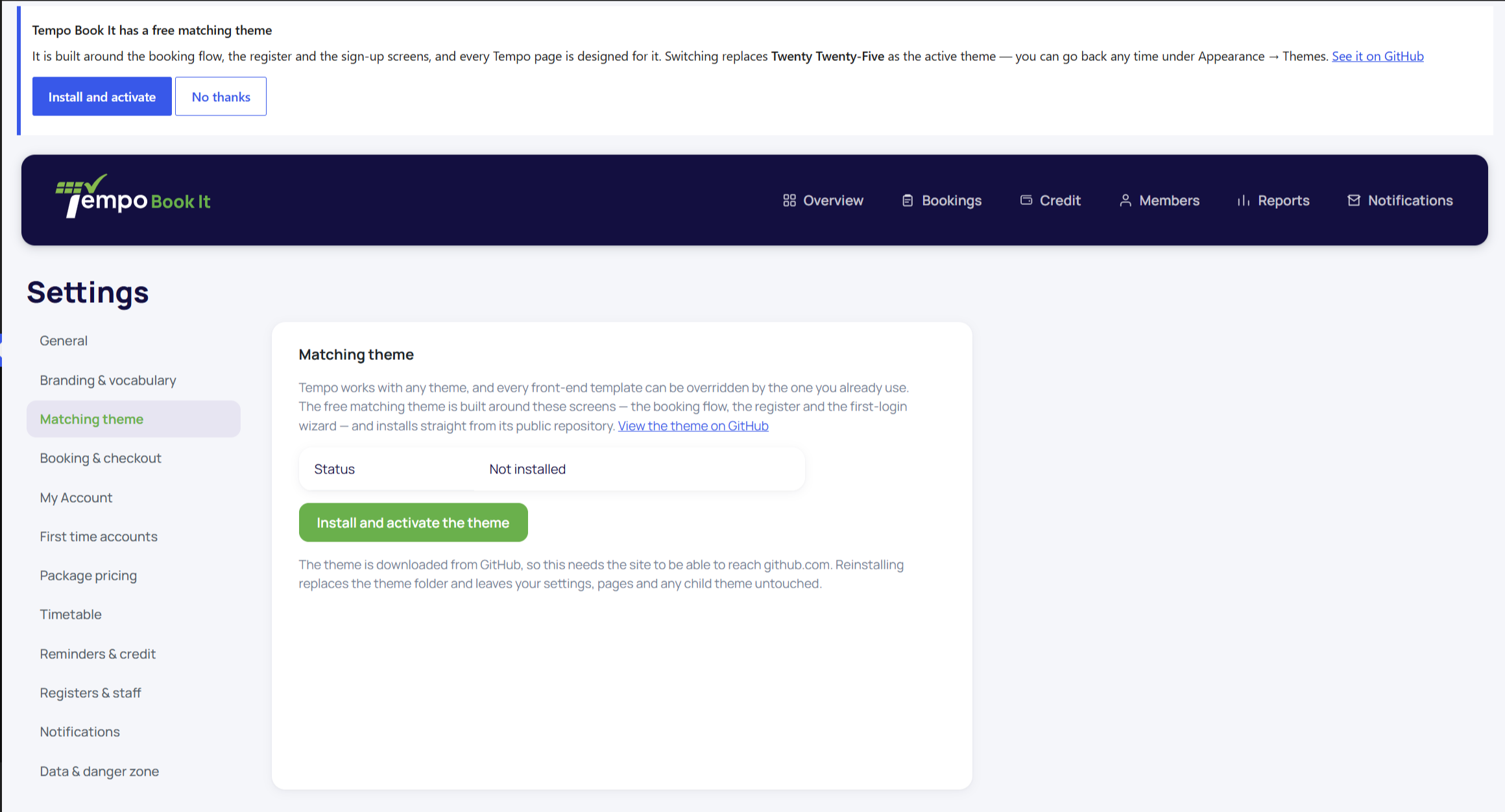
You may also have been offered the theme with a single tick in the setup wizard, which does exactly the same thing.
The Matching theme tab is only visible to site administrators (users allowed to install themes). Club staff with Tempo-only admin access won't see it.
The recommendation notice
If the theme isn't in use, WordPress admin shows a plain notice offering to install or activate it, so nobody misses that it exists. Choosing No thanks dismisses it permanently for the whole site; one administrator answering settles it for everyone. If you change your mind later, Tempo → Settings → Matching theme is always there.
Updates
The theme doesn't come from the WordPress.org directory, so Dashboard → Updates won't offer its updates. Instead, the Matching theme panel compares your installed version against the latest release; when a newer one exists, the same one-click button updates it.
Updating replaces the theme's files wholesale. Your settings, pages and content are untouched, but if you (or your web designer) have edited files inside the theme folder itself, those edits would be lost. The right way to customise is a child theme, which survives every update; your web designer will know the drill, and our developer docs cover it.
If the one-click install fails
The download needs your web server to be allowed to fetch files from the internet. A few strict hosts block this, and some managed setups disallow dashboard installs entirely; in both cases the panel says so plainly. The manual route:
- Contact us and we'll send you the theme's zip file.
- In WordPress admin, go to Appearance → Themes → Add New → Upload Theme, choose the zip, install and activate.
Do I have to use it?
No. Every Tempo screen your members see is built from templates any theme can restyle or override, and clubs with an agency-built site often keep their own theme. The matching theme is simply the shortest path when you'd rather not think about it.
Thanks. That helps us improve these guides.
Thanks for letting us know. Ask us on the Support page and we'll help directly.