

Browse docs
Publishing your timetable on another website
Let a separate site, like your marketing site, show the current term's timetable without anyone retyping it.
Many clubs run a separate public website alongside their booking site: a marketing site, a village-hall page, a federation listing. The public timetable feed lets that other site display your timetable straight from Tempo, so nobody retypes it every term and it's never out of date.
Your site may use different words. Tempo lets you rename class, student and teacher under Settings → Branding & vocabulary; these docs use the defaults.
Switching it on
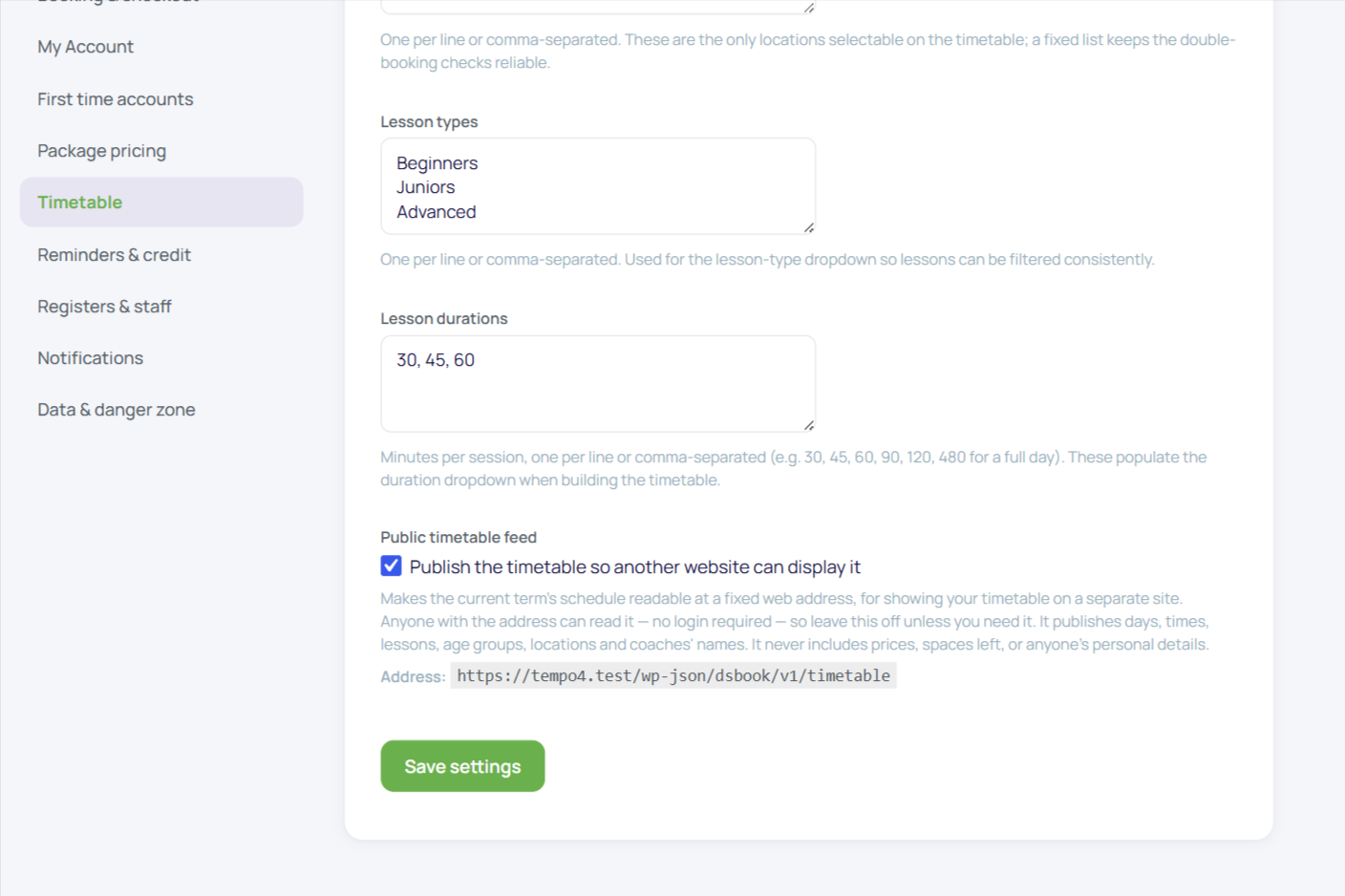
Go to Tempo → Settings → Timetable → Public timetable feed. It is off until you switch it on. Turning it on reveals the feed's web address; hand that address to whoever builds or looks after the other website. That's your whole job; building the page that displays the feed is theirs, and Tempo's job ends at making the information available.
What the feed contains
It always describes the term running now (or, between terms, the next one to start): the term's dates, the half-term break and any excluded dates, then every timetable entry with its day, time, class name, age group, location and teachers.
Entries that aren't bookable online are included and flagged, so the other site can show them with an "invitation only" badge rather than pretending they don't exist.
What it never contains
No prices, no capacities, no how-many-spaces-left, no admin notes, and nothing about any student. Teachers appear as their display name only. Extra sessions aren't included either: the feed's shape is your weekly timetable, and dated one-offs belong on the booking page, not the poster. The feed is timetable information a passer-by could read off a poster in your window, and nothing more.
Who can read it
Anyone who knows the address, without logging in; that's the point, since your marketing site's visitors aren't logged into your booking site. It's also the reason the setting ships off: leave it off unless you're actually using it, and switch it off again if the other site stops needing it.
For the web designer on the receiving end, the feed's technical details (the route, its behaviour while switched off, and exactly what the payload carries) are in Actions, filters and integration surfaces.
Thanks. That helps us improve these guides.
Thanks for letting us know. Ask us on the Support page and we'll help directly.