

Browse docs
Creating your booking and register pages
The two member-facing pages Tempo needs, how they're created, and how Tempo keeps track of them.
Tempo puts two pages on the front of your site: the booking page, where members browse and book, and the register page, where teachers mark attendance from a phone. Both are ordinary WordPress pages containing a Tempo shortcode, so they can live anywhere, use any slug, and be styled by your theme. (A third, smaller page is created for you too: Need help, where members find the right inbox for their question; it has its own article.)
Your site may use different words. Tempo lets you rename class, student and teacher under Settings → Branding & vocabulary; these docs use the defaults.
The booking page
Activating the plugin creates a Book classes page for you, containing the booking shortcode:
[dsb_booking]That page is ready to use as-is. You're free to rename it, move it, or delete it and put the shortcode on a different page; the shortcode is the booking flow, wherever it lives.
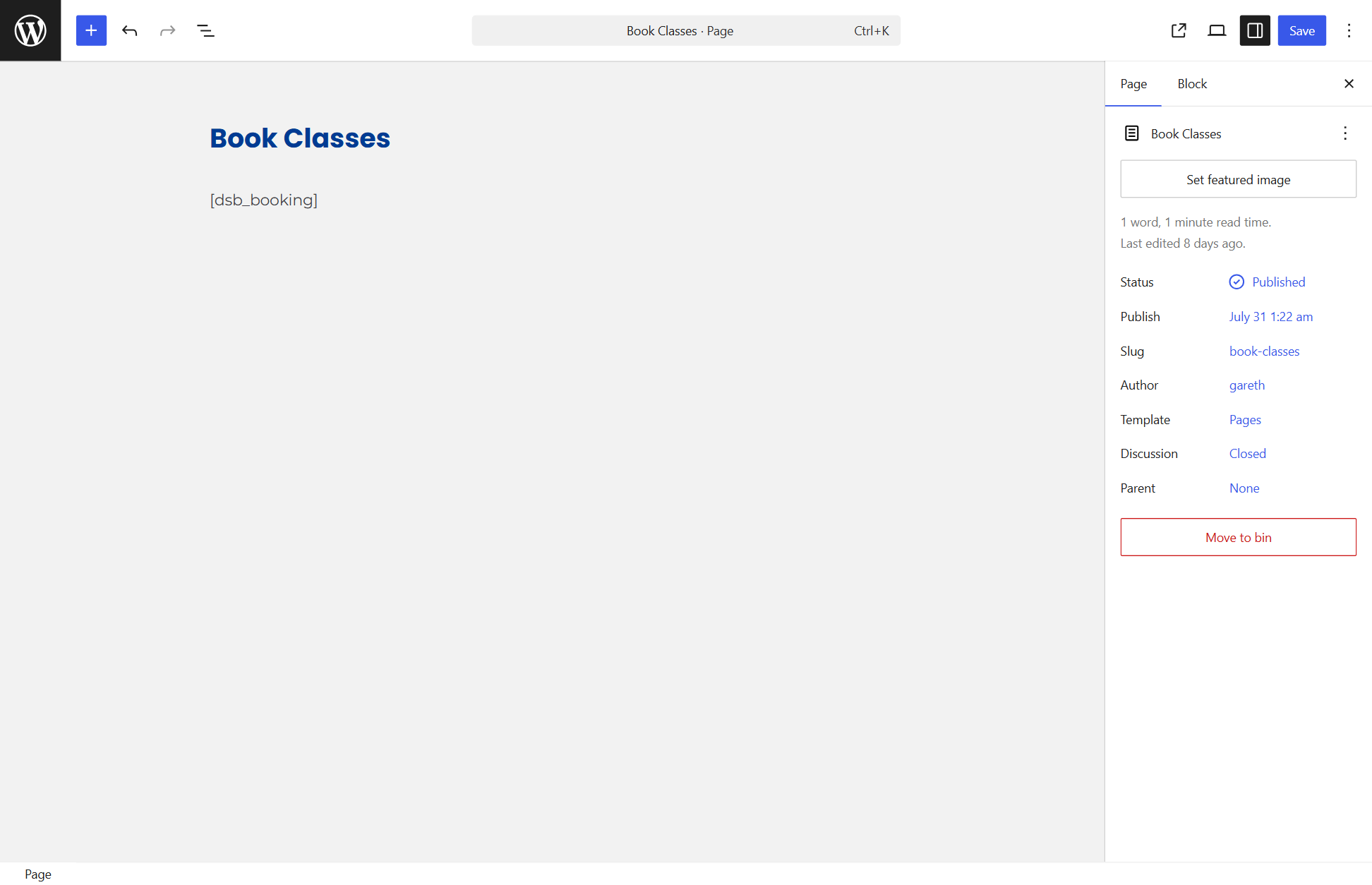
What members see on it: choose who the booking is for → choose a class → choose single sessions or a package → review and pay. The whole flow is mobile-first and works even with JavaScript off. See The booking flow: what your members see.
Classes only appear on this page once you've set up a term, a class and its timetable entry, with online booking open. An empty booking page right after install is normal; the Quick start gets you to the first bookable class.
The register page
Create a page (most clubs call it "Register") and add:
[dsb_register]Teachers visit this page directly, logged in with their teacher account; there's no WordPress admin involved. It shows each teacher their own day's classes first, with big touch-friendly controls. See The teacher register on a phone.
Don't link the register page in your public menu. It shows nothing useful to members (they'll just see a login prompt), so it's cleaner to give teachers the link directly.
How Tempo knows where these pages are
Tempo remembers each page automatically the first time its shortcode is viewed, and other parts of the site (emails, checkout's "back" link, the account area's "Book classes" button) use that remembered page. If you ever rebuild or replace a page, just open the new page once while logged in as an admin and Tempo adopts it.
You can also see and set this explicitly under Tempo → Settings → General, where the Book classes, Register and Need help page assignments all live, and Tempo's dashboard has a System health check that verifies each link works and names the page it points to.
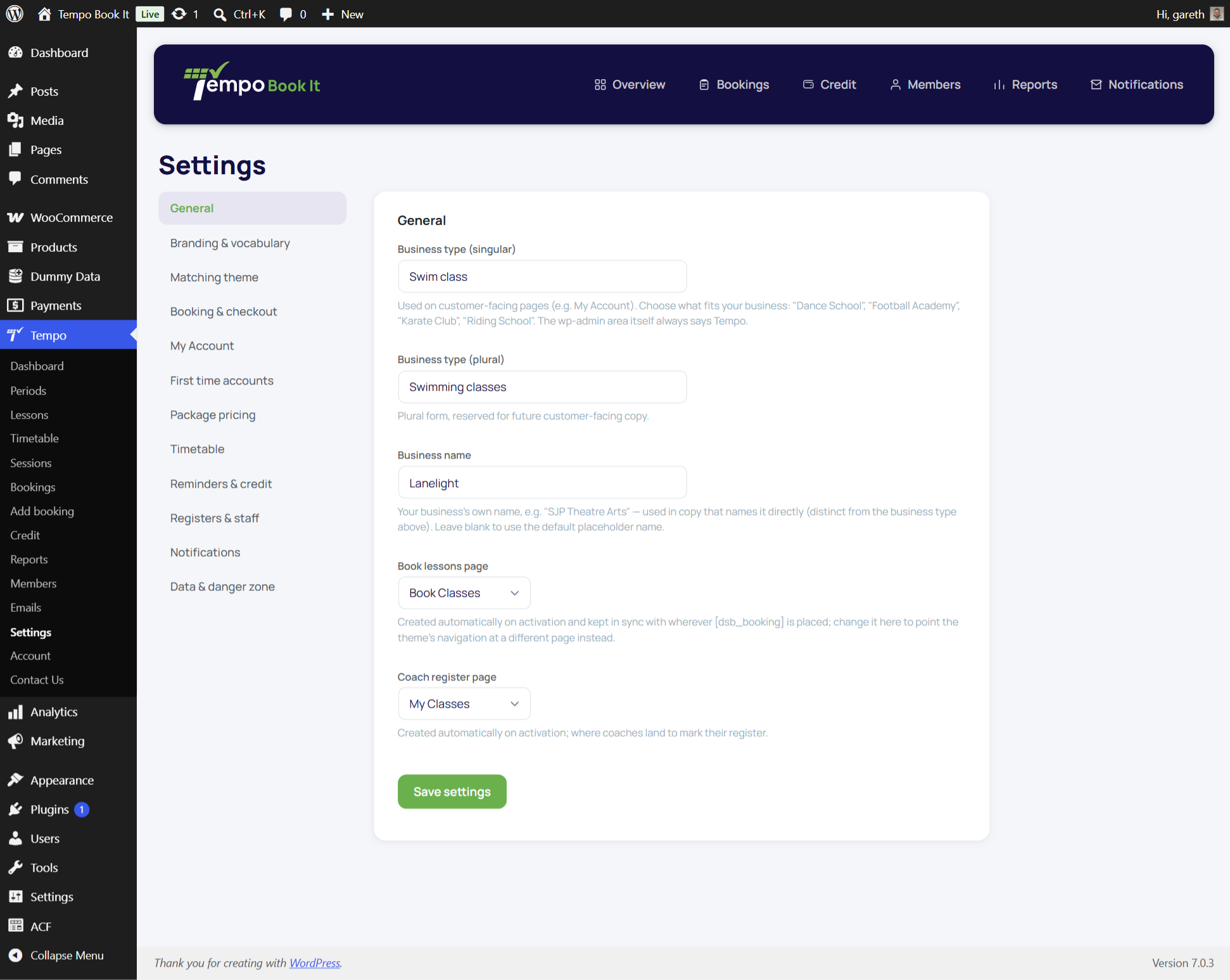
If a link ever leads somewhere odd, the fixes are quick: see The "Book classes" link leads to a missing page and The page shows the shortcode as text.
Using the booking page as your front page
You can, and it works, but think twice: most clubs do better with a proper front page (your branding, photos, "book now" button) linking to the booking page. If you do promote the booking page to the front page and anything looks off, see Putting the booking flow on your front page.
Thanks. That helps us improve these guides.
Thanks for letting us know. Ask us on the Support page and we'll help directly.