

Browse docs
The My Account area, tab by tab
What families see and do in their account: bookings, credit, students, photo permission and more.
Everything a family self-serves lives in the standard WooCommerce My Account area, where Tempo adds its own tabs alongside the usual ones. This tour is worth reading once so you can answer members' questions from memory.
Your site may use different words. Tempo lets you rename class, student and teacher under Settings → Branding & vocabulary; these docs use the defaults.
Layout
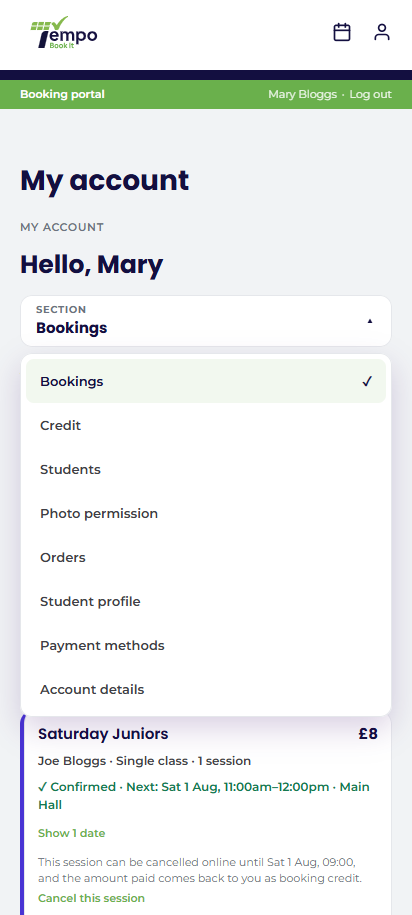
By default Tempo restyles the account navigation into its own tabs (Bookings, Credit, Students, then WooCommerce's usual items), with a greeting header, a sticky side column on desktop and a dropdown on mobile. A checklist under Tempo → Settings → My Account hides tabs your club doesn't use (Downloads is the usual casualty). Prefer your theme's own account menu untouched? Choose Stick to theme and Tempo's pages simply render inside it.
Bookings
The family's home tab: Upcoming, Previous, and Cancelled & transferred views, filterable by child (plus Myself, for a parent who also attends classes), searchable by class, paginated so it stays fast after years of history. Each upcoming booking is a card: class (with its colour), student, package, total, confirmation state, and an expandable date list where each date shows its true state (attended, cancelled by the club with the reason, transferred with destination) and the self-serve actions: Cancel this session within your deadline, and Report absence with an undo (it asks first, naming the date, and says plainly it isn't a cancellation). A card holding several individually booked dates puts the Cancel action on each eligible date row instead, since each of those dates has its own deadline (Member cancellations). The cancellation policy is stated right on the card, so "I didn't know the cut-off" conversations get rarer.
Credit
Balance on top, then Available lots, Past credit and the full Activity history. If your site uses restricted credit pots (most don't; see How booking credit works), the balance is broken down per pot here too. What families see here mirrors exactly what your office sees, which keeps credit conversations short.
Students (parents only)
One card per child: photo or initials, next booking, and Book for {name}, which selects that child and goes straight to the booking page. From here parents also manage per-child email notifications (children with their own address can receive copies; the parent always receives everything) and Add a student.
"Add a student" deliberately doesn't create the child on the spot. It files a request for your office, because the child may already have a record from your old system, and linking the wrong one would split their history. The parent sees requested children as "Waiting for the office". Your side of that queue is covered in Linking parents and children.
The tab also carries the "I also attend classes" card: switch it on and Myself joins the booking chooser and every student list, for parents who take a class themselves. Switching it off tidies Myself away without touching anything already booked. The model behind it is in How accounts work.
Student profile
With the matching theme (or any theme that supports it), families maintain each child's profile here: date of birth, gender, parent/guardian and emergency contacts, medical notes, photo. A parent who also attends classes gets a Myself chip alongside the children, showing their own profile with the self wording and no parent/guardian section; the same completeness rules apply before they can book themselves in. The tab re-asks for the account password before showing sensitive fields, and a progress bar shows completeness, which matters because an incomplete profile can't book online (the booking page says exactly what's missing, with a link here). Details and the office-side view: The student directory, and the parent can't book troubleshooter.
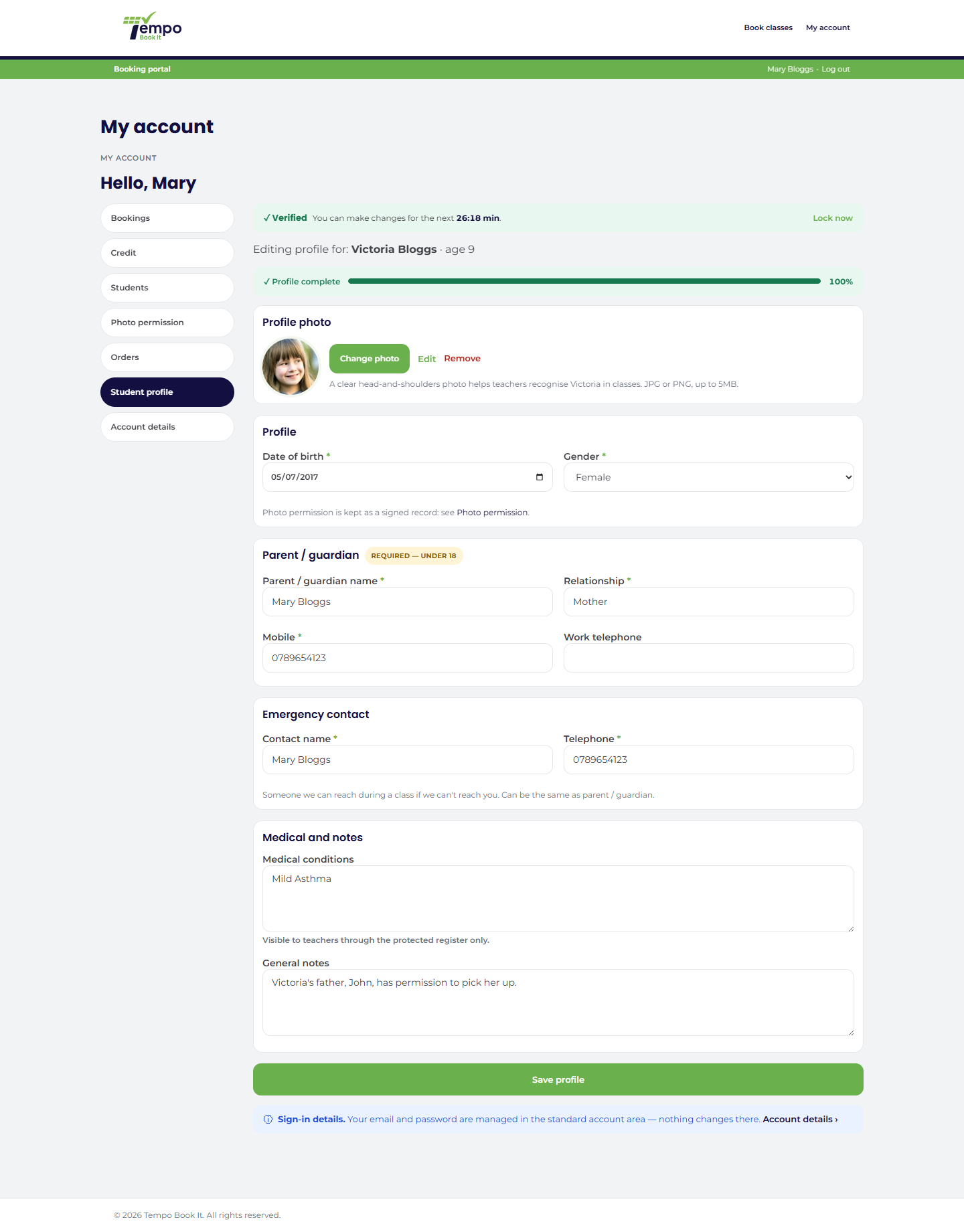
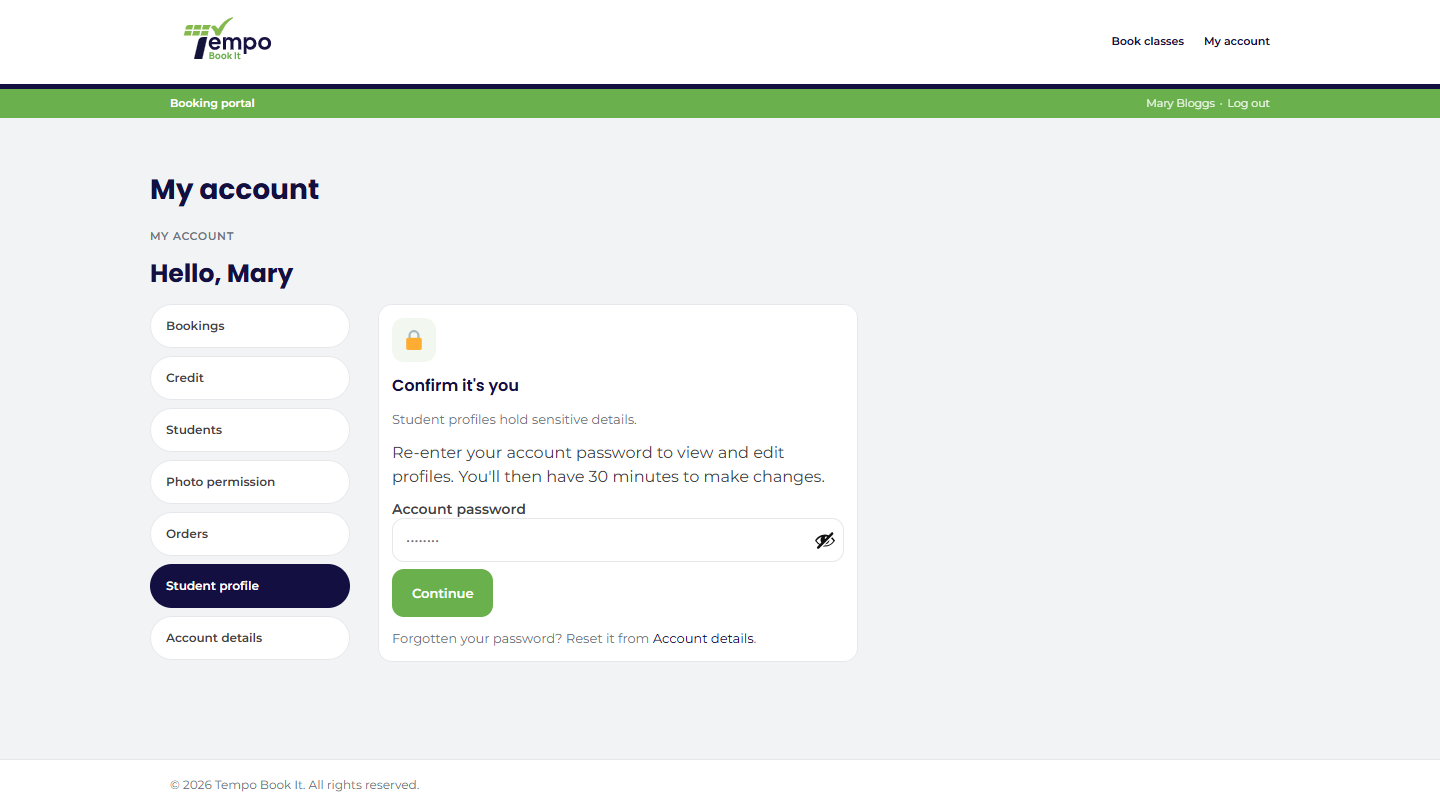
Photo permission
One card per child showing the answer on file, what was agreed, who signed and when, with the drawn or typed signature viewable. Changing an answer appends a new record; the history is never overwritten, so what was agreed at any date is always provable. Clubs that don't ask for photo permission can switch the whole feature off in settings. More in The first-login wizard and photo consent.
Teacher PIN (staff only)
Register users see one extra tab for setting their protected-profile PIN; members never see it. Covered in Protected profiles and the teacher PIN.
Reminder preference
In Account details, members can opt out of routine class reminder emails. Confirmations, cancellations, payment and safeguarding messages always send regardless.
Thanks. That helps us improve these guides.
Thanks for letting us know. Ask us on the Support page and we'll help directly.